
Getting a DaDesktop server up and running
Deploy a DD node on a GTHost or Hetzner server in Germany
Use the following notes to help you set up a DaDesktop node (server) on a bare‑metal Linux box from GTHost, Hetzner, or a similar provider. Bear in mind that these steps may evolve as the setup script changes.
This assumes you have already bought a server and will bring it up with Ubuntu Jammy 22.04. If you have two or more disks, RAID0 (striping) can boost disk performance – just define it through the Hetzner ‘installimage’ process while you are in rescue mode.
Getting ready: OS installation on a GTHost or Hetzner server in Germany
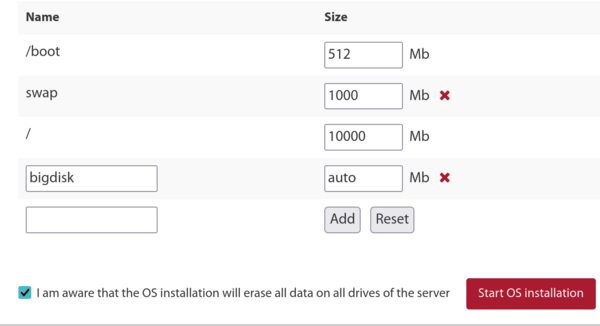
- First, connect via SSH using the root credentials you were given, then run ‘apt update’ followed by ‘apt upgrade’ to bring every package to the latest version. Afterwards, clean up with ‘apt autoremove’ so no old packages are left behind before you begin.
- When you work with a Hetzner server in Germany, you will land in rescue mode. Here you must specify the distribution, software RAID (mdadm), XFS, and IPv4 settings before rebooting. It is simplest to accept the defaults for the small /boot and /boot/esp partitions – they should use ext4, not XFS – and skip a swap partition, as it is not needed. Let the root partition take the remaining disk space and format it with XFS.
- If you are using LeaseWeb or any other host, you will need to switch the main / filesystem to XFS instead of ext4 or btrfs. The instructions below are merely a guide. Setting up the root partition to use XFS is trickier than just creating a separate /bigdisk with XFS because you cannot safely change the filesystem type on a mounted / partition – any such change must be made from outside the OS.
-
Where possible, use the hosting provider’s own tool to build an XFS filesystem – it is much simpler. Otherwise, from the rescue environment run something like:
mkfs.xfs -f /dev/mdx (this formats the target partition with XFS; the -f flag forces the overwrite).
Note that we no longer carve out a separate /bigdisk partition; instead, we just use a folder under /. - Mount the freshly formatted partition with ‘mount -t xfs /dev/mdX /’ while still outside the running OS, or use the service provider’s web portal if it offers that option.
- If you are still relying on a separate /bigdisk partition (which is nowadays rare), add it to /etc/fstab using ‘defaults,nofail 0 0’. That setting lets the system boot even if the /bigdisk mount fails for some reason.
- Run ‘systemctl daemon-reload’ to make systemd pick up the changes in /etc/fstab.
- Then run ‘mount -a’ to verify that all required partitions are present, and double‑check them with ‘df -T’.
-
Reboot
Running the DaDesktop installation script
- Log into the server via SSH as the svr user, for instance svr@xxxxxxxxx.
- Kick off the installation using the DaDesktop setup script.
- Fetch the script with curl https://www.dadesktop.com/d > d
- At this stage, the underlying operating system should be upgraded from 22.04 to the most recent Ubuntu release – right now that would be Ubuntu 23.10 (Mantic), soon to be followed by 24.04 (Noble).
- The easiest route is to run the update-os script that is bundled inside /apps/dadesktop_npnode_deploy/modules/00-upgrade-os . Using it is smoother than a manual version upgrade because it swaps the APT sources from jammy to mantic (or nautic) in one go, rather than working through multiple steps. Although upgrading two releases at once is usually discouraged, the tiny set of packages installed makes it quite safe.
-
If DNS stops working during the distribution upgrade (we saw this happen once), fix it like this:
rm /etc/resolv.conf ; echo "nameserver 8.8.8.8" > /etc/resolv.conf - You may optionally set the hostname – for example, lo33uk.npg.io – if you want to give the DD node a specific identity, perhaps because you have already set up a server with that name. Reboot if a hostname change is required.
- Next, launch the main script that installs the DD node. Consider using tmux to protect against a broken SSH connection during the upgrade, then from the directory where you downloaded the script simply run ‘bash d’.
- Keep an eye on the log messages that scroll by for any problems. While the script runs, the server’s IP will be automatically added to the NP access list; you may need to wait a minute or two for the whitelist cron job to refresh before you can continue.
- Follow the script’s output and note – or report – any issues that appear.
- After the installation finishes, run the cleanup script at /apps/dadesktop_npnode_deploy/modules/00-cleanup . It strips out many unneeded packages and may roll back a few that were upgraded.
- Then execute /apps/zabbix-agent/services/test-all.sh to check for residual problems.
- For any packages that are now unmaintained, remove them with ‘apt purge xxx yyy’. Also delete any broken links that the cleanup tool reported.
-
Finally, reboot and confirm everything works as expected.
Verifying the DD node after installation
- Look up the new DD server entry and test it with the TPAPI tools inside the DaDesktop GUI.
- Set the start and expiry dates for the server in DaDesktop, and assign it to a datacenter if needed.
- Confirm that the server appears normally in Zabbix; clear up any alerts or snags.
- Run a quick test by adding a Standalone desktop to the server and launching it.
- Place the server in the relevant datacenter, if that has not been done already.
- If billing rules are called for, add them for the new server.
- Copy any operating‑system templates to the server if they are required.
- If a particular course is meant to run on this server, let the trainer or coordinator know so they can switch to it.
Enjoy !