Creating from a Standalone Desktop
-
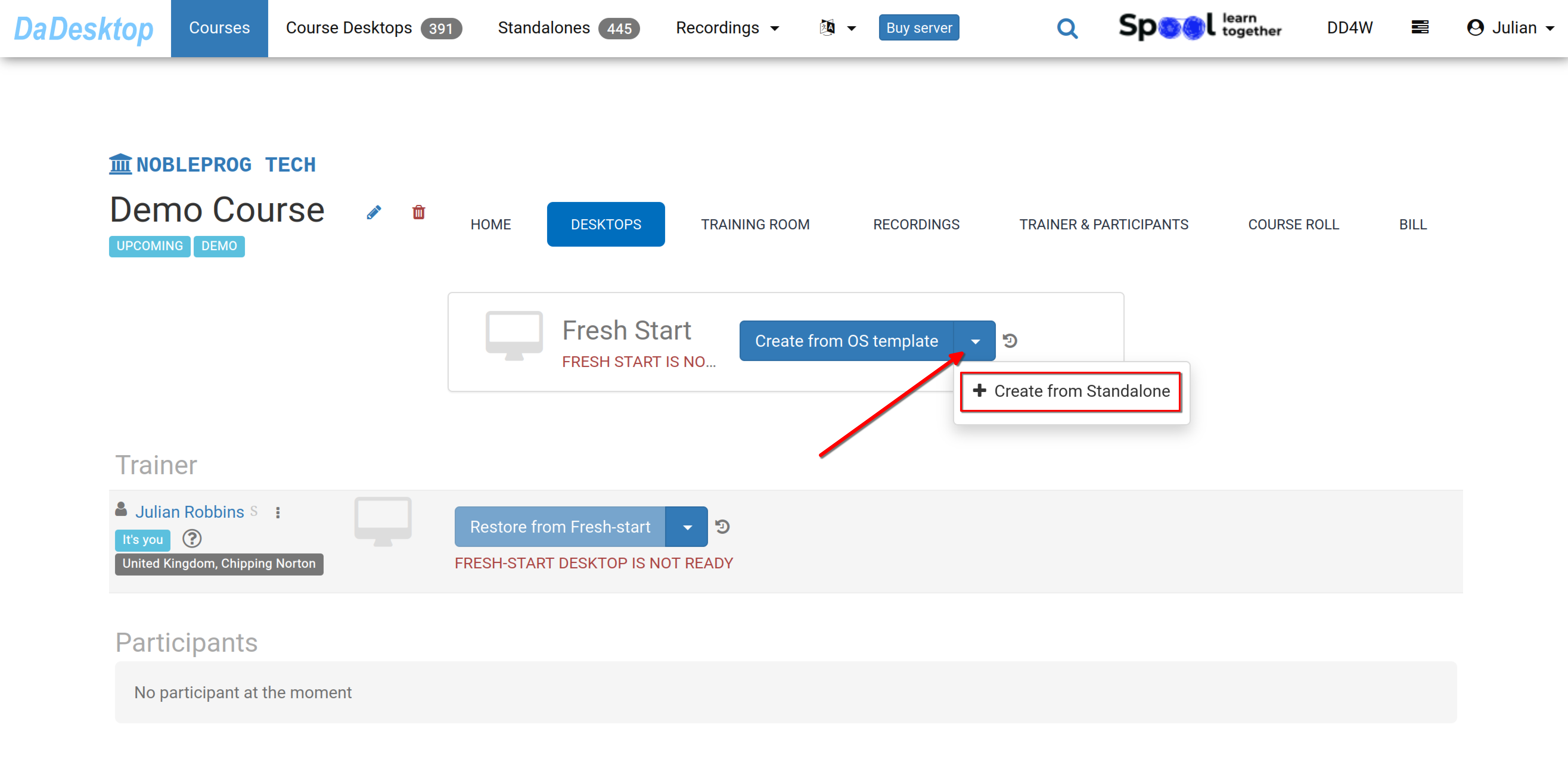
Navigate to your existing course—here's a sample demo course for reference. Then, head over to the Desktops tab, open the dropdown menu, and select "Create from Standalone" to initiate your Fresh Start.
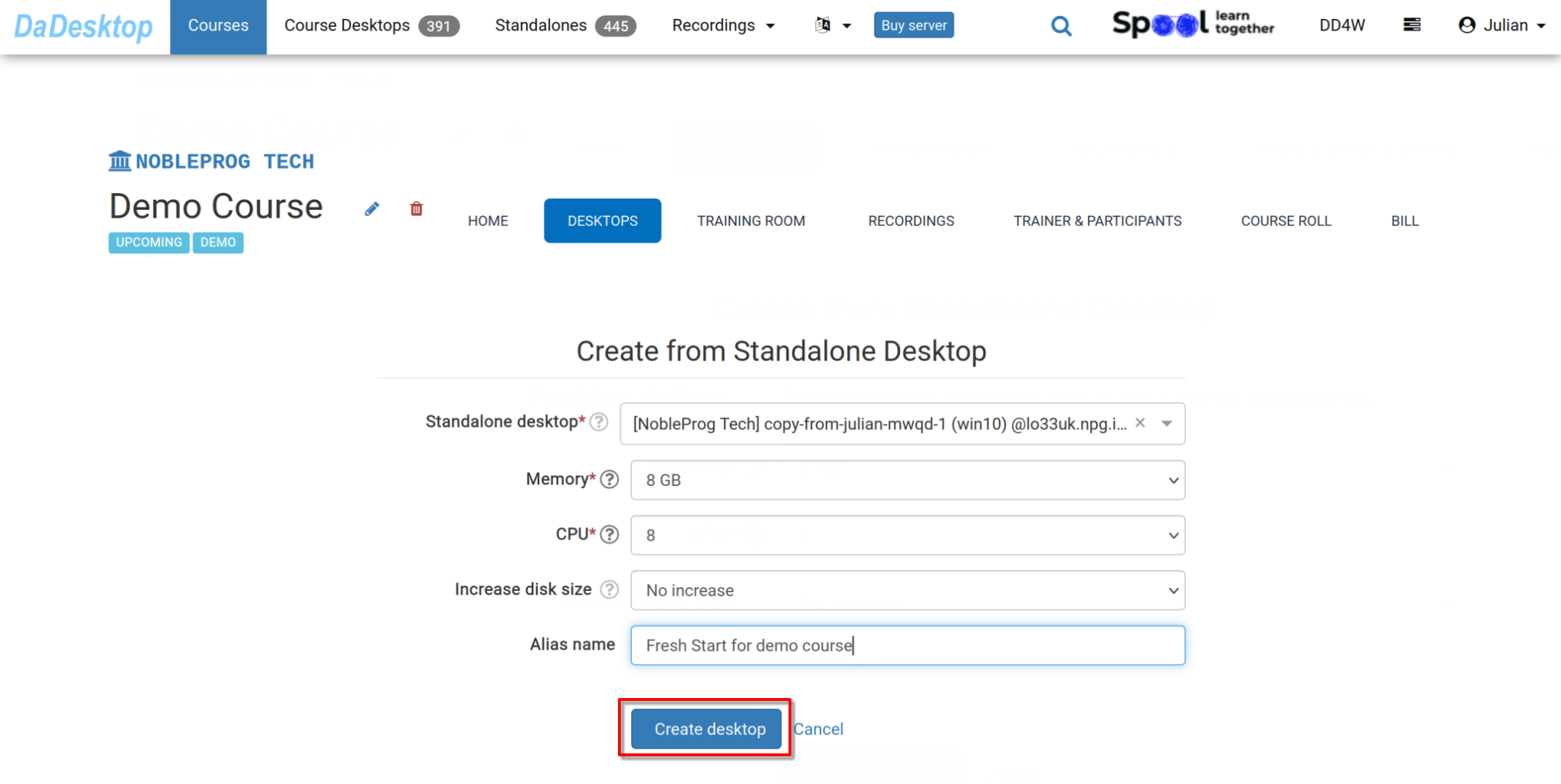
- Pick the Standalone desktop you previously worked with to build the course environment (which includes software, course materials, quizzes, and so on).
-
During this step, you can adjust the memory, CPU, and disk size as needed. After making any changes, click Create desktop.
-
Now the Fresh Start is ready. Both the Trainer and Participants in Germany can clone desktops from it.
The Fresh Start functions as a master desktop within the course, enabling you to clone it for all participants and the trainer at the same time. If necessary, anyone in the course can restore from this Fresh Start.
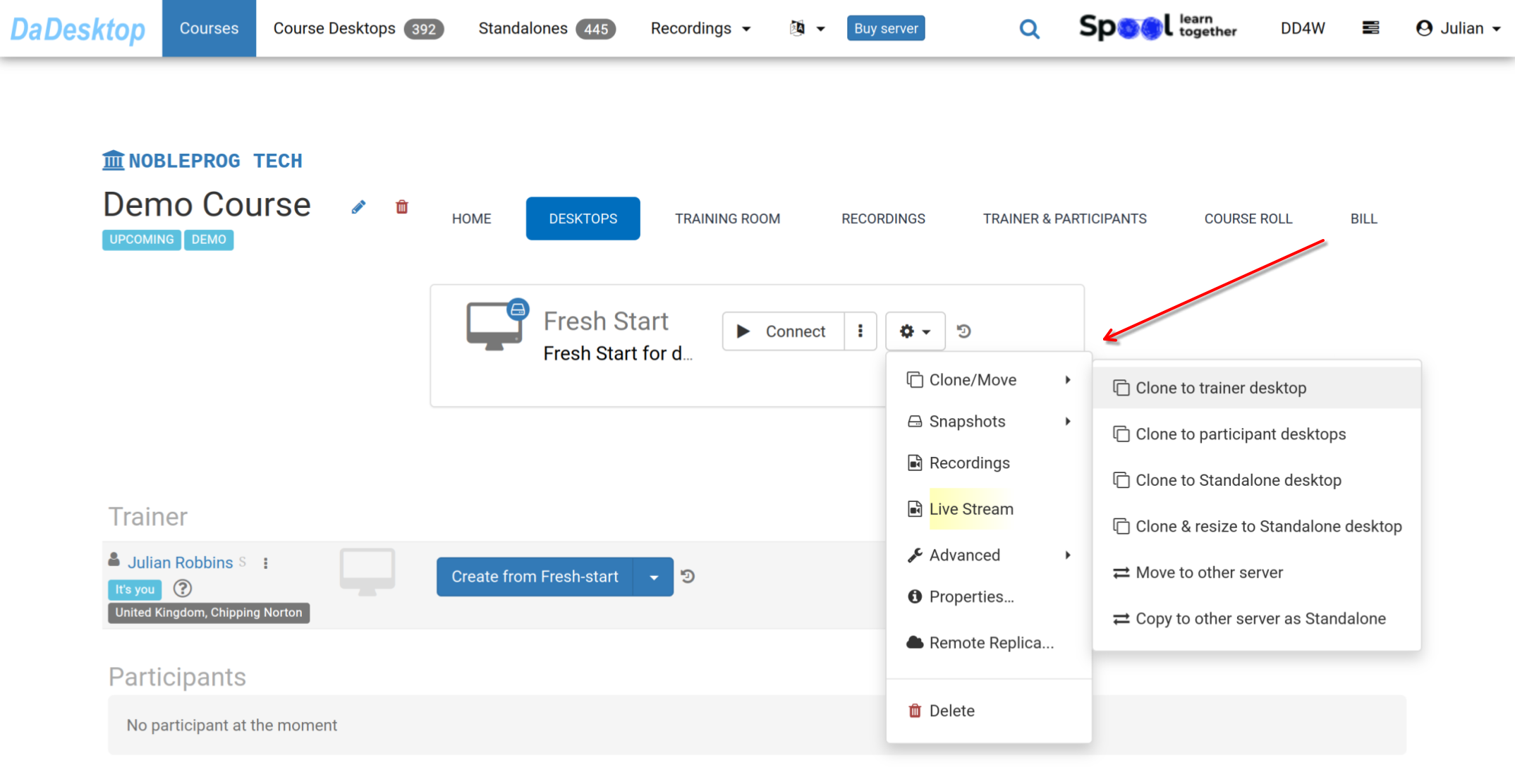
The 'Cog' menu offers several additional capabilities: you can clone the Fresh Start to the Trainer, Participants, or a standalone machine, and also clone and resize it to a standalone setup. You can also relocate the Fresh Start to a different server, take Snapshots, view Recordings, or set up a Remote Replica.For more information, please consult the relevant documentation for each feature.