
Setting and Canceling Deletion Dates for Standalone Machines
Why does the deletion schedule matter to you?
If you're using a Standalone machine to continue working on a past course lab, or as a Trainer preparing course materials, there's no need to worry.
However, to manage system resources more efficiently, standalone machines that haven't been used for over a month will be automatically scheduled for deletion, and you'll receive a reminder 7 days in advance.
You can also cancel the deletion schedule.
How to schedule the deletion of a standalone machine yourself.
- When creating a standalone desktop, you can set a delete date
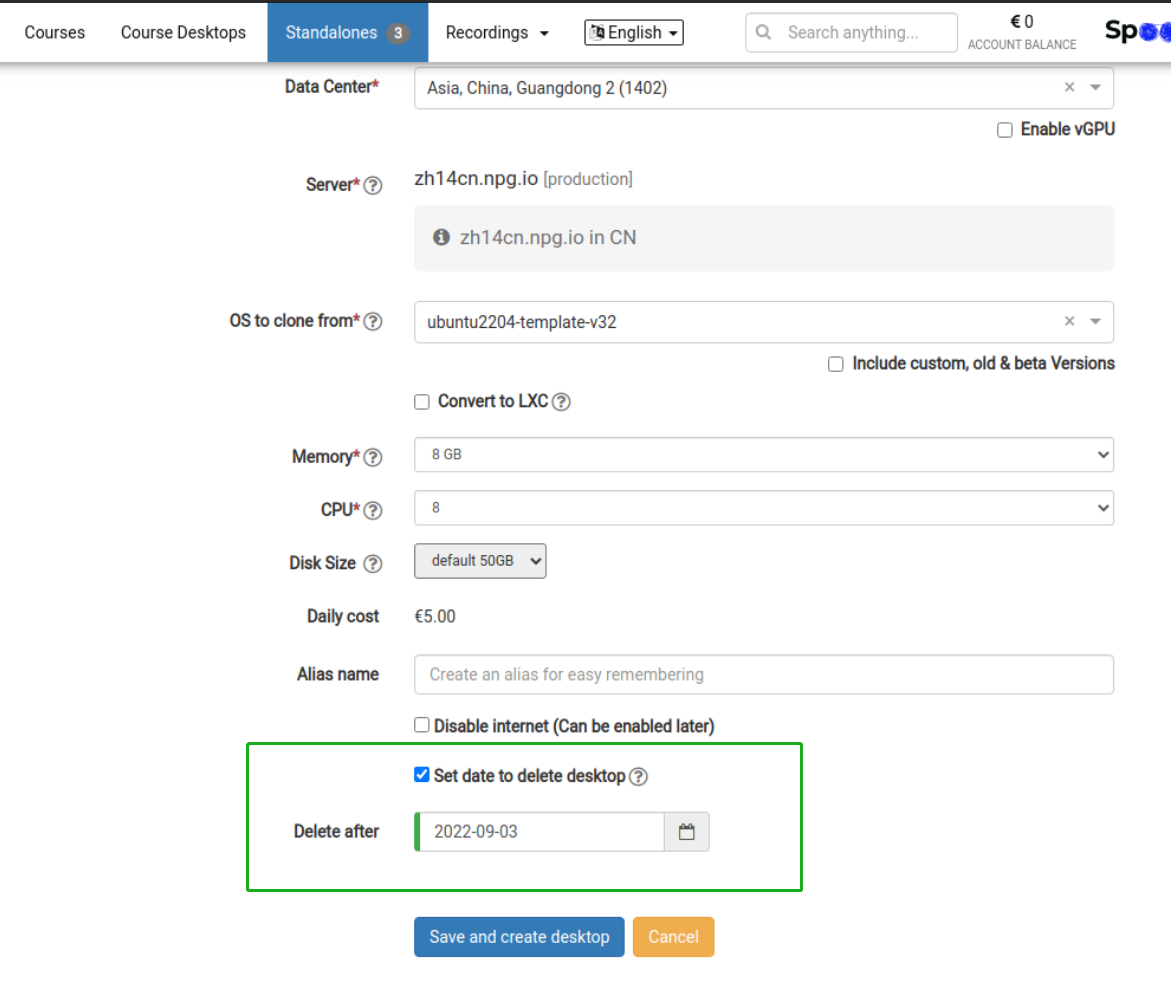
-
Set a date to delete the standalone from the Options menu
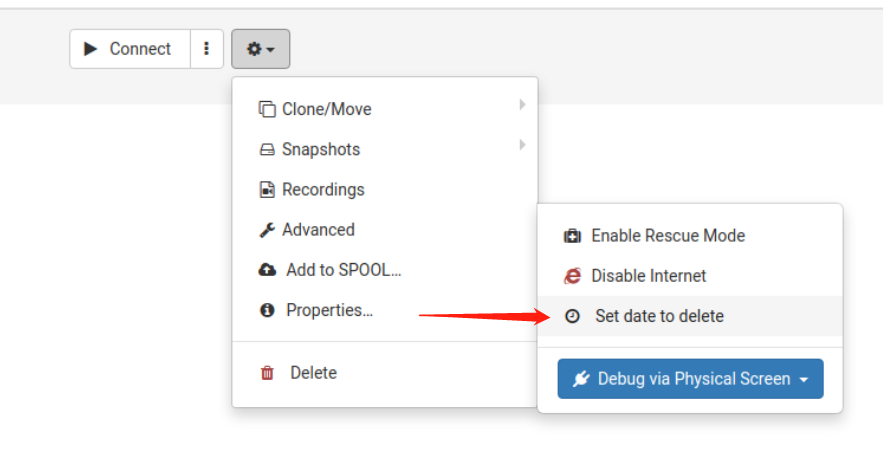
How to clear a scheduled deletion date
1. In the Options menu, click "Scheduled to delete on"
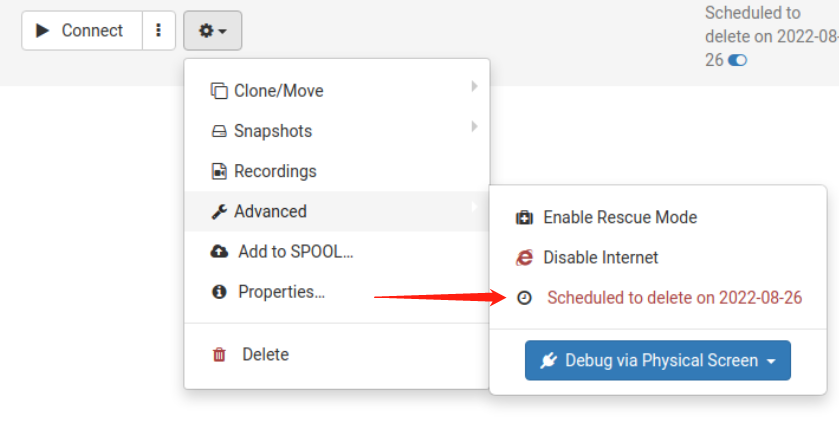
2. Hover over and click the blue toggle icon to instantly remove the delete date
