
Continue Desktop Use After Your Course Ends
One handy aspect of DaDesktop is that course attendees can keep using their training machine for practice even after the course wraps up. Before the course ends, they receive an email asking if they'd like to continue accessing their desktop once the training is over.
Normally, each participant's course desktop is deleted shortly after the course concludes. But if you'd like to hold onto it for lab practice, you can clone it into a 'Standalone Desktop' for ongoing use.
Head over to your course and desktop machine, then click the 'Use desktop after course' option next to your machine.
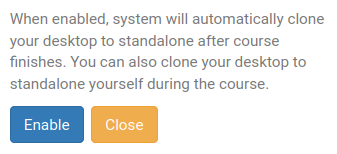
DaDesktop then walks you through the simple process and lets you 'Enable' this operation.
Once enabled, you'll see the following indicator next to your course machine.

When the course is over, you can reach your standalone machine by clicking the Standalones menu at the top of your screen.
Standalone machines that sit idle for a month are automatically removed. But before that happens, we send an email well in advance to give you ample warning, in case you want to keep yours active.
For more details on managing your standalone machine's retention, take a look at this page.