Setting Up Multiple Course Dates
While building a course, you can set it up to run on multiple dates. This gives you the flexibility to adjust when the course is open to attendees, so it fits better with your calendar.
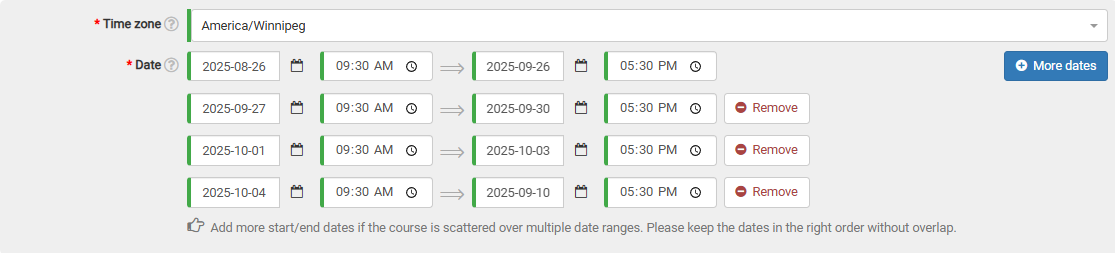
In the date section of the course form, hit the "More dates" button. A new line for choosing dates will then appear on the form.

Feel free to include as many date ranges as required, provided there is no overlap between them.
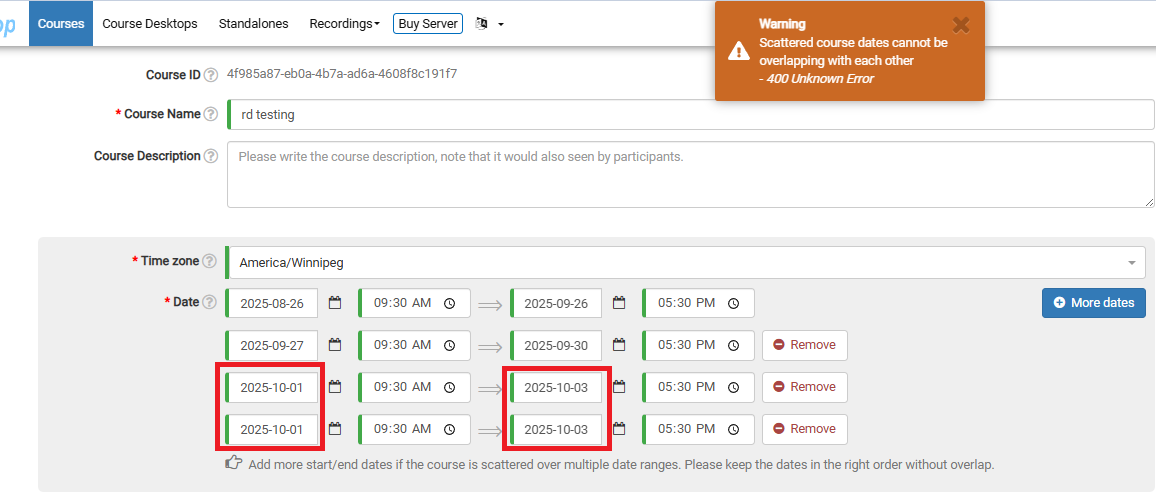
If any dates overlap, attempting to submit the course will trigger a warning at the top of the page. Below, I've accidentally selected the same date range twice.