
DaDesktop for Attendees: A How-to Guide
Objective
This guide is intended for participants (students) who want to enroll in a course offered on DaDesktop.
Overview of DaDesktop
DaDesktop is a cloud platform built specifically for IT training. It's geared toward both IT trainers and learners, providing virtual desktops that leverage the cutting-edge DaDesktop® technology. During sessions, each participant gets their own complete online desktop, enabling them to work through exercises under the trainer's supervision.
Its three main parts are:
- Management Console – a web-based interface for system administration, such as launching and shutting down cloud desktops.
- Training Room – a collaborative area for remote desktop sharing, audio, chat, and recording lessons.
-
Remote Desktop – a virtual machine (either Windows or Linux), one per user.
What You'll Need
Whether you're connecting from the office or from home, you'll need the following:
- A computer (desktop or laptop) with a stable internet connection (at least 10 Mbit/s download and 1 Mbit/s upload). Works with Windows, Mac, or Linux.
- A modern web browser like Chrome or Firefox
- A decent microphone or headset (using a phone is a last resort, although not suggested)
-
A calm, distraction-free environment (a café isn't suitable)
For a better experience:
- A webcam
- An extra monitor – use one screen to follow the instructor, and the other to work on your DaDesktop Virtual Machine for hands-on labs.
- Disable any VPN connection before joining the course
- If possible, turn off any security software that might interfere with your network connection
- Where possible, use a wired Ethernet connection; if you must use Wi-Fi, run a speed test beforehand (e.g., at speedtest.net)
You might want to test joining your course and explore your DaDesktop virtual classroom before the course begins. Keep in mind, however, that on days before the course starts, you'll only be able to access the Desktop for 15 minutes at a time.
Course Access
Bear in mind that outside of the actual course days, access to your course is limited to just a 15-minute window.
During the course days, you can access it all day long. (Formerly, access was only allowed about an hour before the course.)
Keep Your Desktop After the Course Ends
One standout feature of DaDesktop is that participants have the option to keep using their machine after the course concludes.
The link above provides complete details on how to set this up.
Joining a Course
Click the link provided by your course coordinator (for example, dd4t.dadesktop.com/da/join/xxxxx).
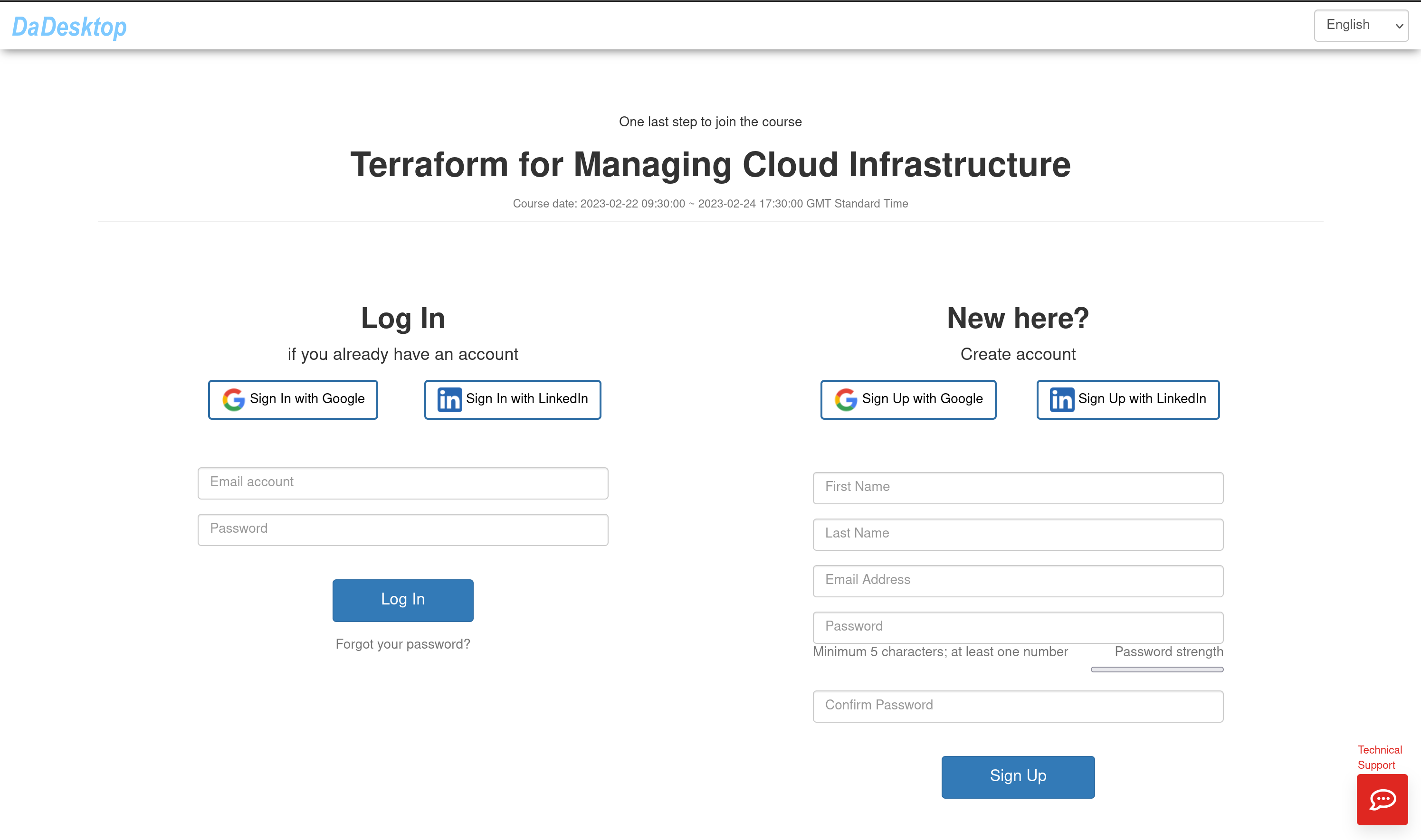
Image 1
If you're a first time user, fill in your details under "Account" and click “Sign Up”. You can register using the form or sign up with your Google or LinkedIn account.
If you already have an account, just log in.
You'll then be directed to the Management Console for your course.
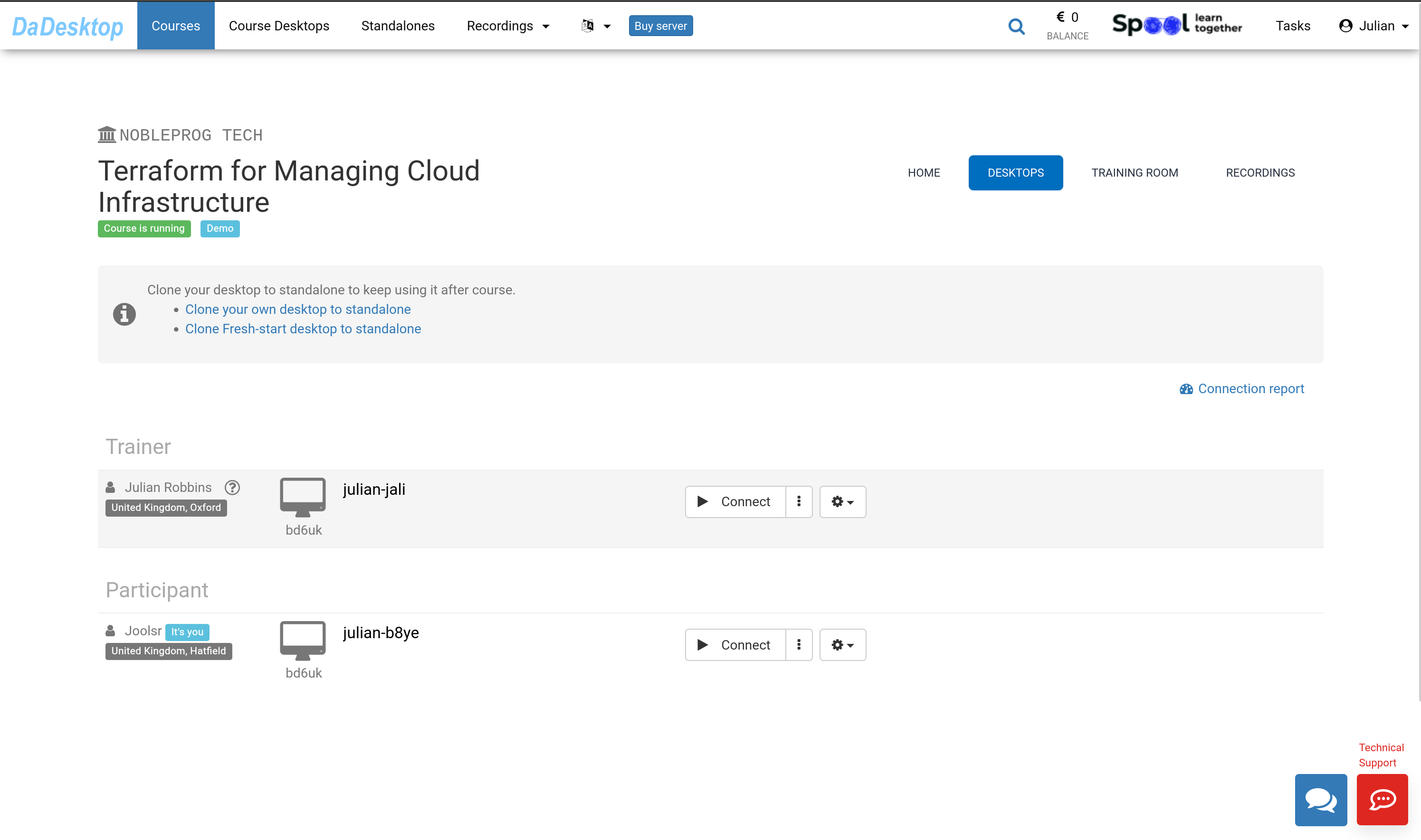
Image 2
Using the Management Console
Go to the "TRAINING ROOM" tab.
Click the "Join Training Room" button.
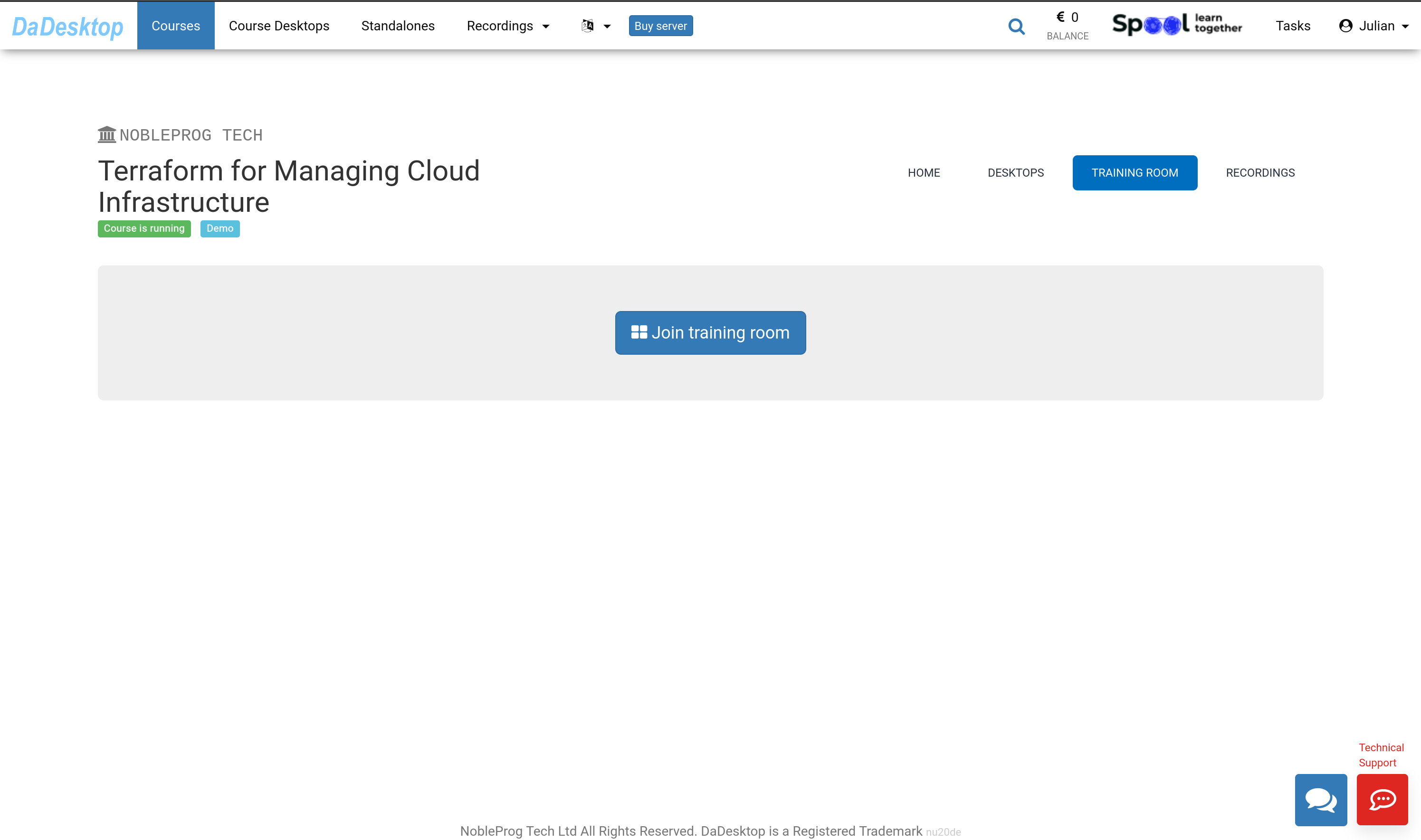
Image 3
The Virtual Training Room opens in a new browser window. You'll see a pop-up asking for permission to copy items to the clipboard; choose "Allow".
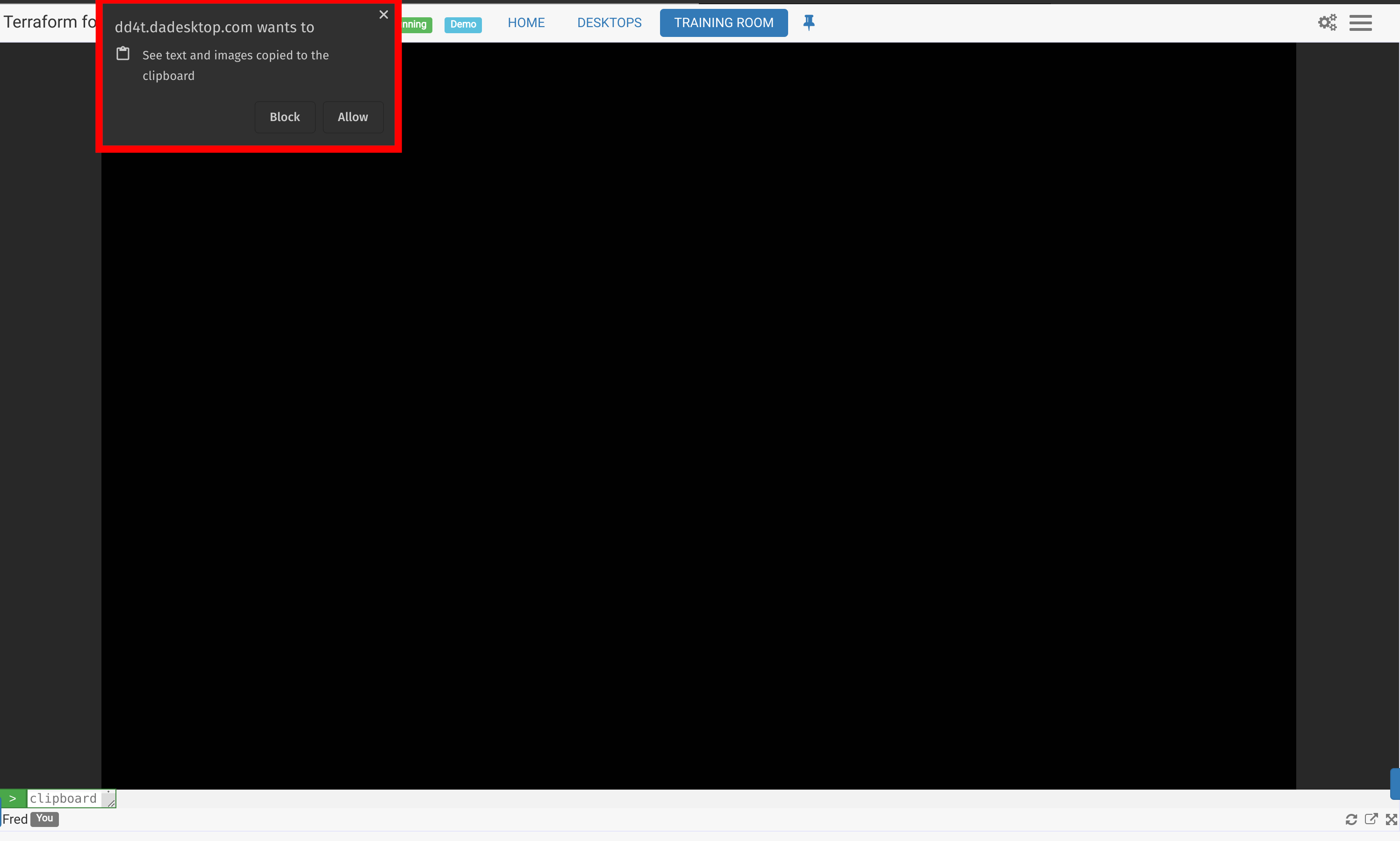
Image 4
Navigating the Training Room as a Participant
The Training Room displays a tab at the top of the screen with links to return to the course.
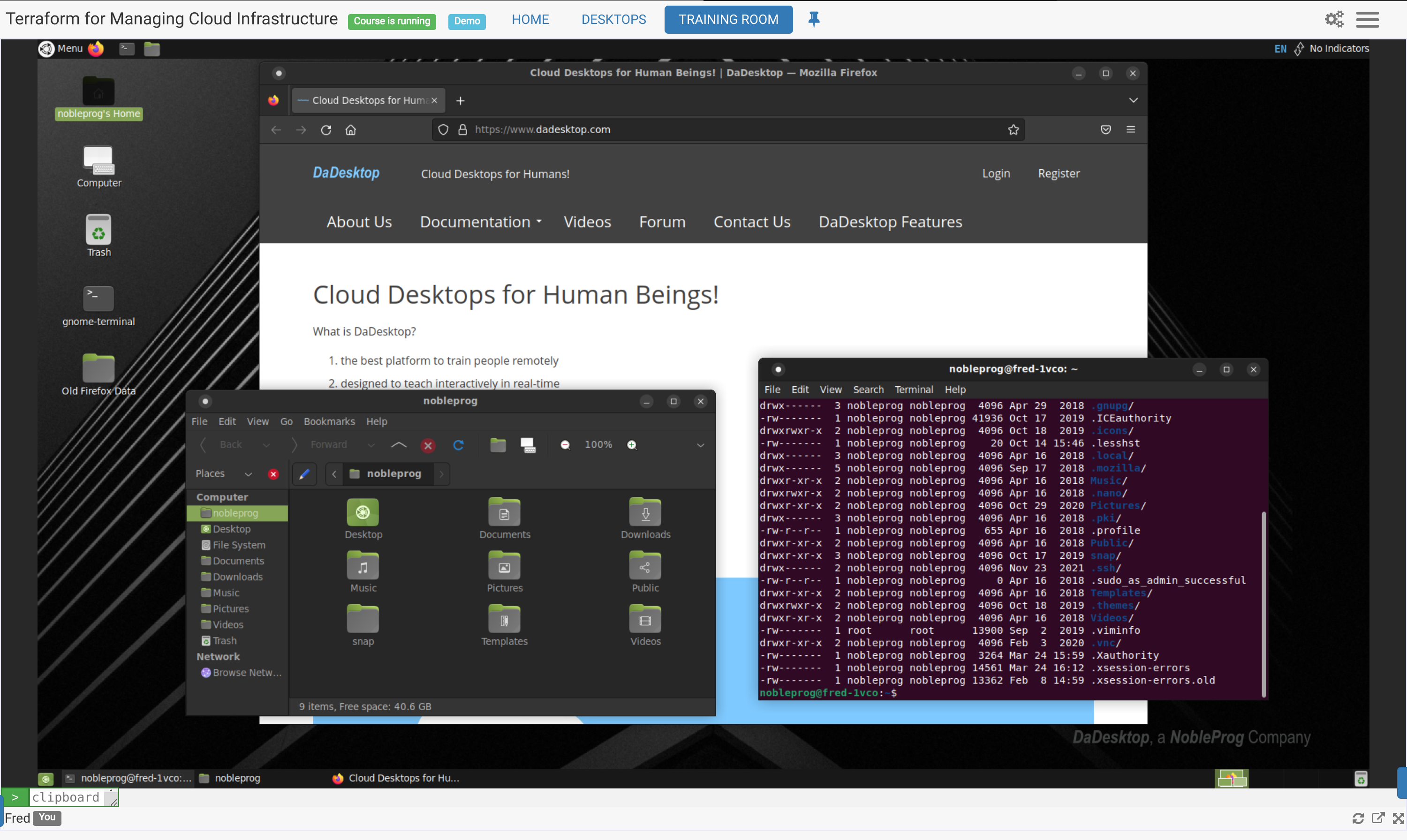
Image 5
Controls available at bottom of the screen
- From here, you can 'pop out' the display to a second monitor if needed, or you can maximise the browser window to fill the screen.
- Also, in the bottom-right corner, there's a small blue toggle for accessing the DaDesktop support chat.
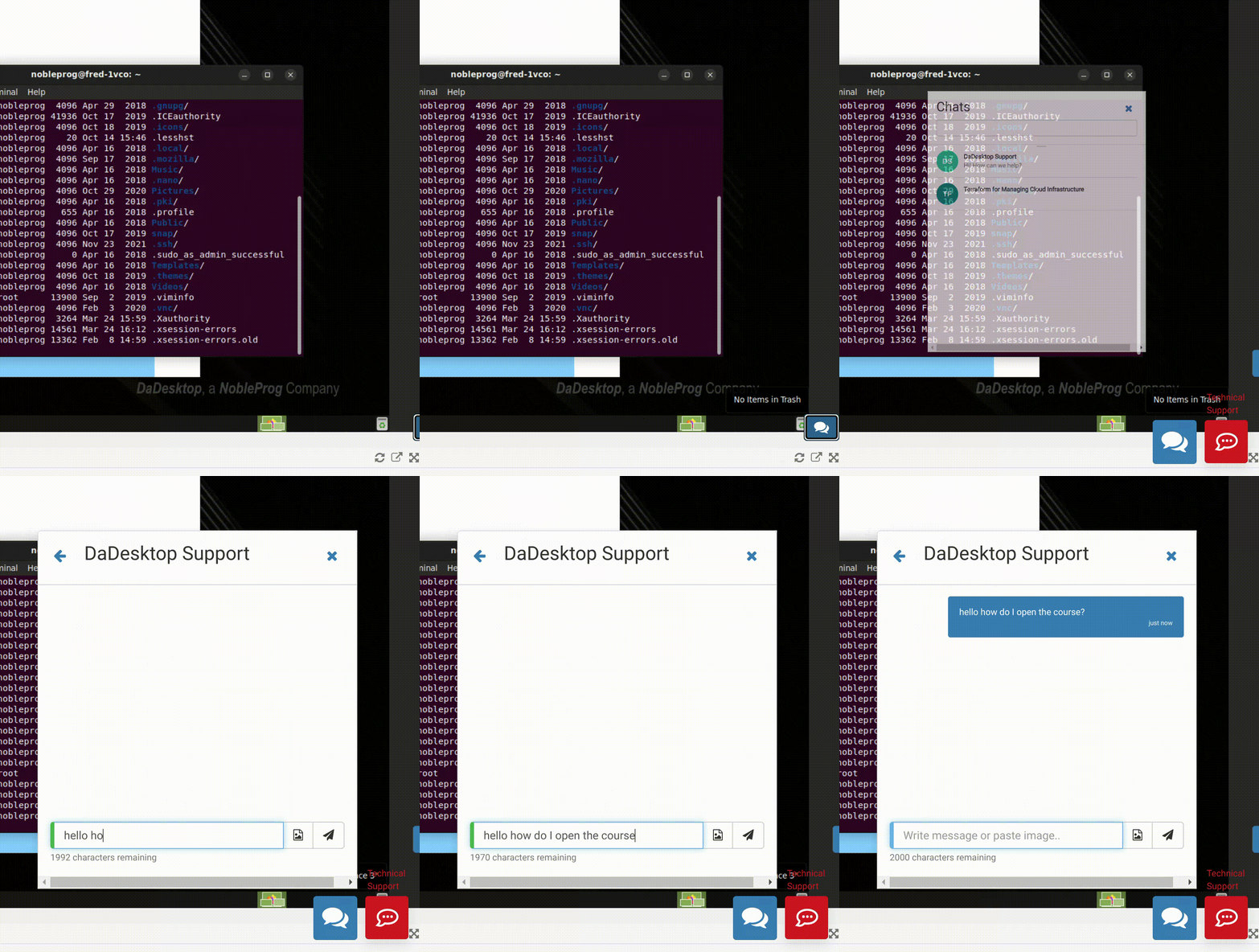
Using the new Clipboard function
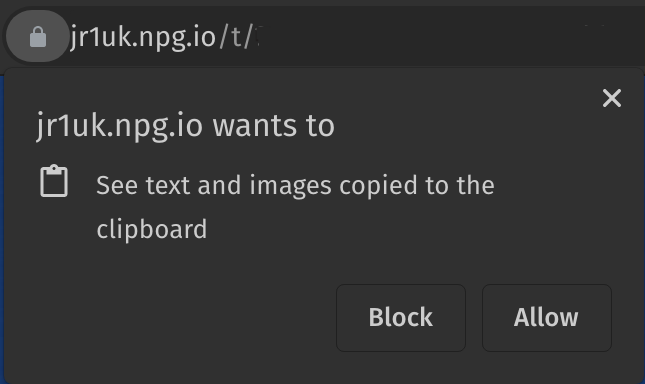 To transfer text such as web links, code snippets, and similar from your local machine to the Virtual Machine, we utilise the Clipboard.
When you join your Online Course or Stand-alone Desktop, you'll see a pop-up similar to this one. Click ‘Allow’. Note: At present, DaDesktop does not support copying images to the clipboard.
Image 6
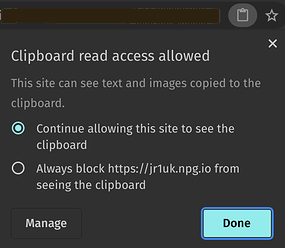 By clicking the tiny clipboard icon in the address bar, you can adjust the clipboard permissions for this site.
Usage
- On Windows and Linux VM Desktops, copy and paste text as you normally would with Ctrl-C and Ctrl-V.
- On a Mac host, use the standard copy command and then press Shift + Ctrl + V, or middle-click the mouse, to paste.
Image 7
If you need additional help with this feature, please reach out to us.
Legacy Clipboard (for browsers not compatible with the new Clipboard, like IE, or as a fallback)
- To copy text between your local machine and the DaDesktop virtual machine, type or paste it into the clipboard area at the bottom left of the screen.
-
On the virtual machine, press the middle mouse button (or scroll wheel) to paste the clipboard contents onto the desktop. This works in any DaDesktop text entry field, provided you're using the standard Linux DaDesktop virtual machine.
For Mac users: Use Command c or ⌘ c to copy, and Command v or ⌘ v to paste. Once the text is in the dd4t clipboard, inside dd4t you can use Control X, Control C, and Control V to cut, copy, and paste respectively. - If you're on the Windows virtual machine, right-click to paste the clipboard contents.
To adjust the clipboard area size, click the green-and-white arrow icon at the bottom-left corner.
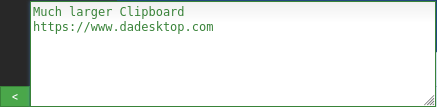

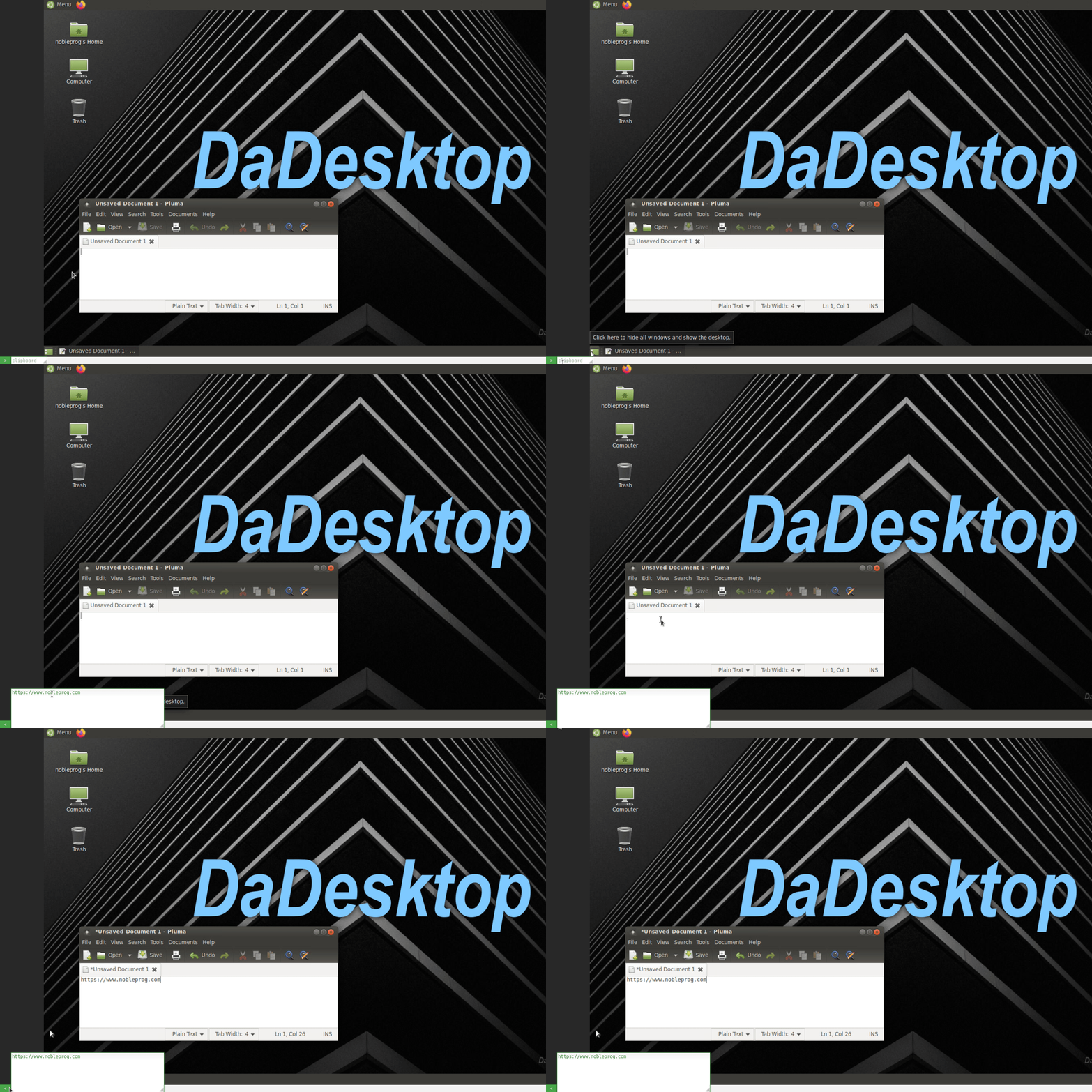
Image 8
Using the mouse in a multi-user scenario
With this feature, when multiple users are connected to the same desktop, the username of the person currently controlling the mouse appears alongside the cursor. It's particularly helpful in multi-user setups and training exercises where different users might take control at different moments.
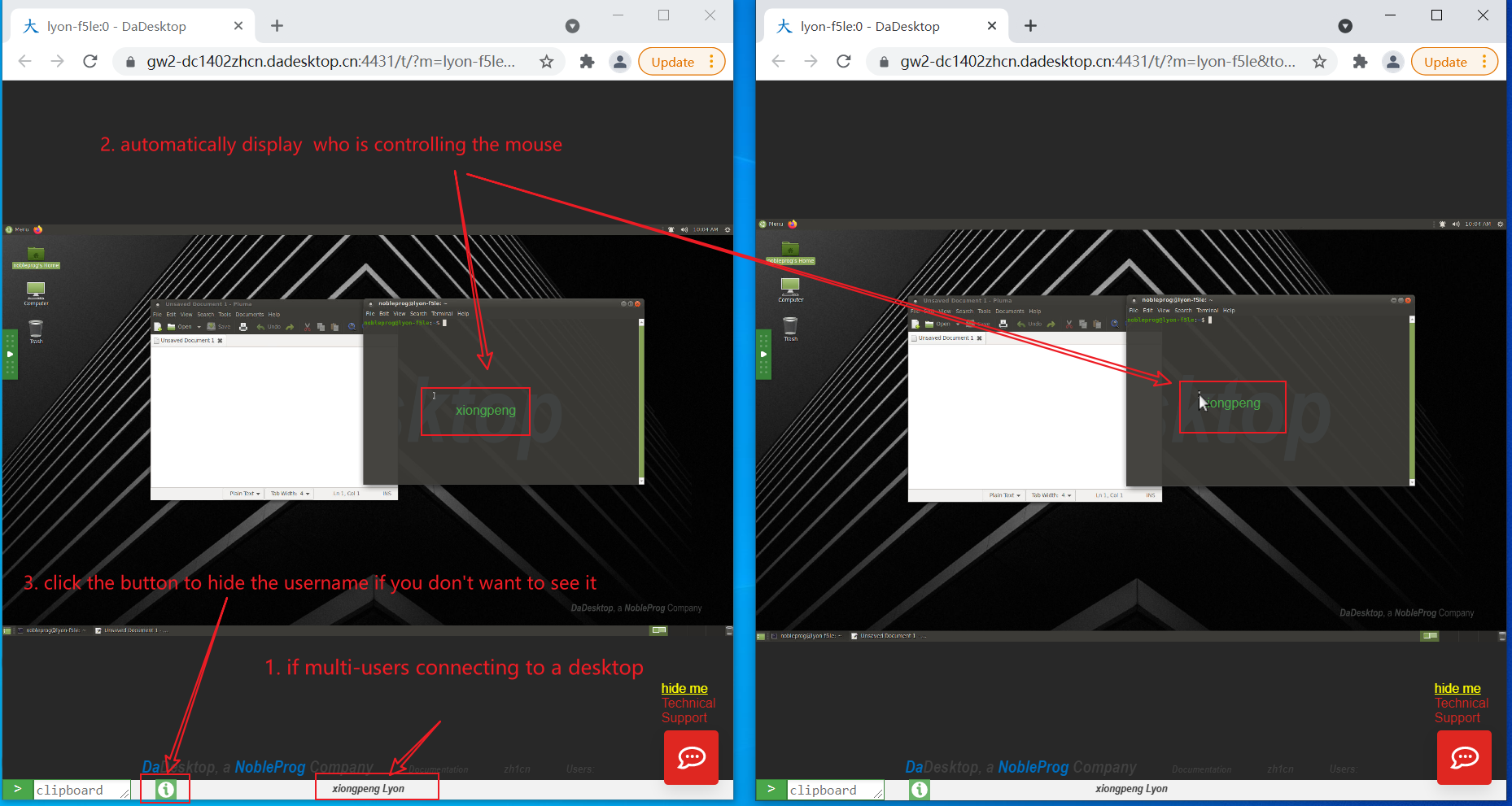
Image 9
When more than one user is connected, their usernames appear in the centre-bottom area of the screen.
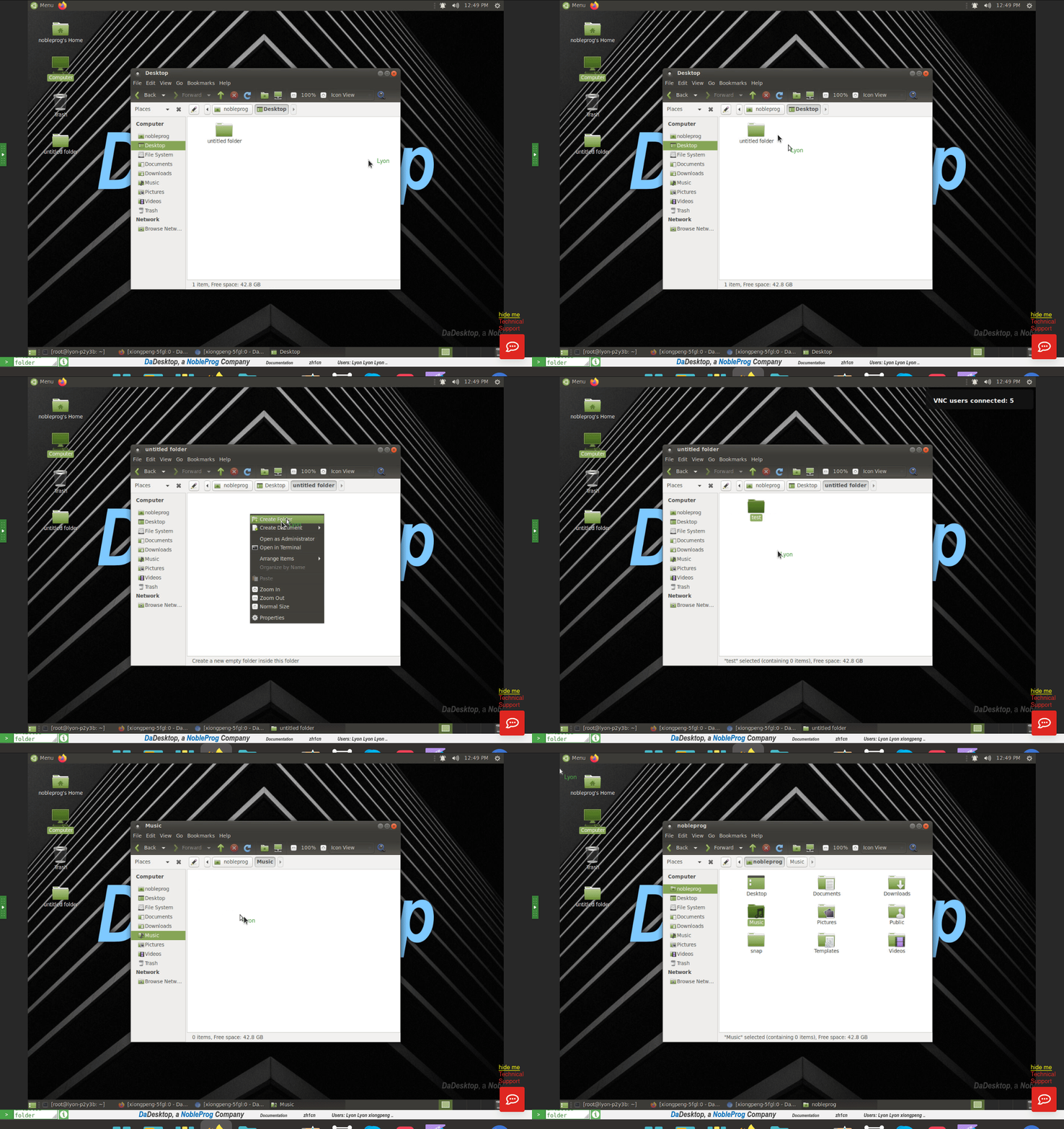
Image 10
You can toggle this feature on or off by clicking the green ‘Info’ button at the bottom of the screen.