Port Forwarding Configuration
Port forwarding lets you make one or more ports on a cloud desktop accessible from your local network or over the internet. It's frequently employed in conjunction with the Remote Desktop Protocol.
This capability is available across Germany for DaDesktop Course machines (which require a private server), as well as for DaDesktop For Work and Standalone machines. Be aware that the interface may look a little different depending on the machine type.
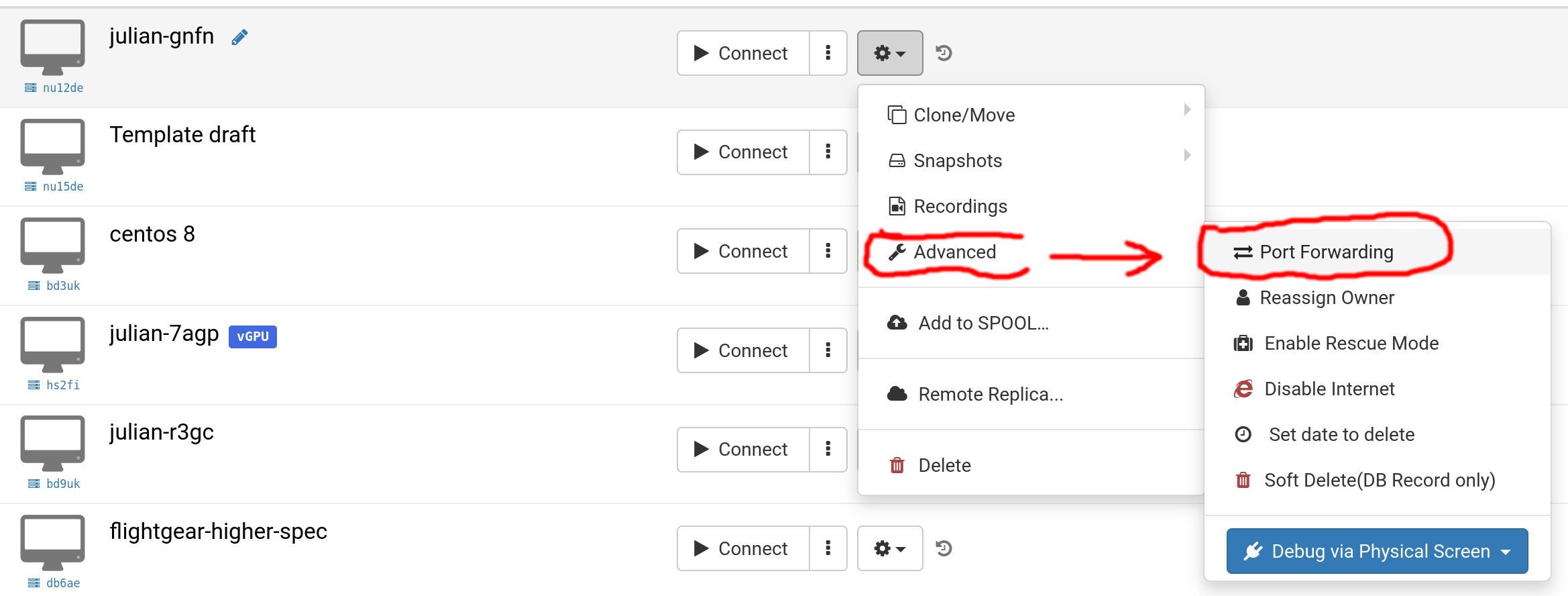
Click on 'Advanced' and then 'Port Forwarding'.
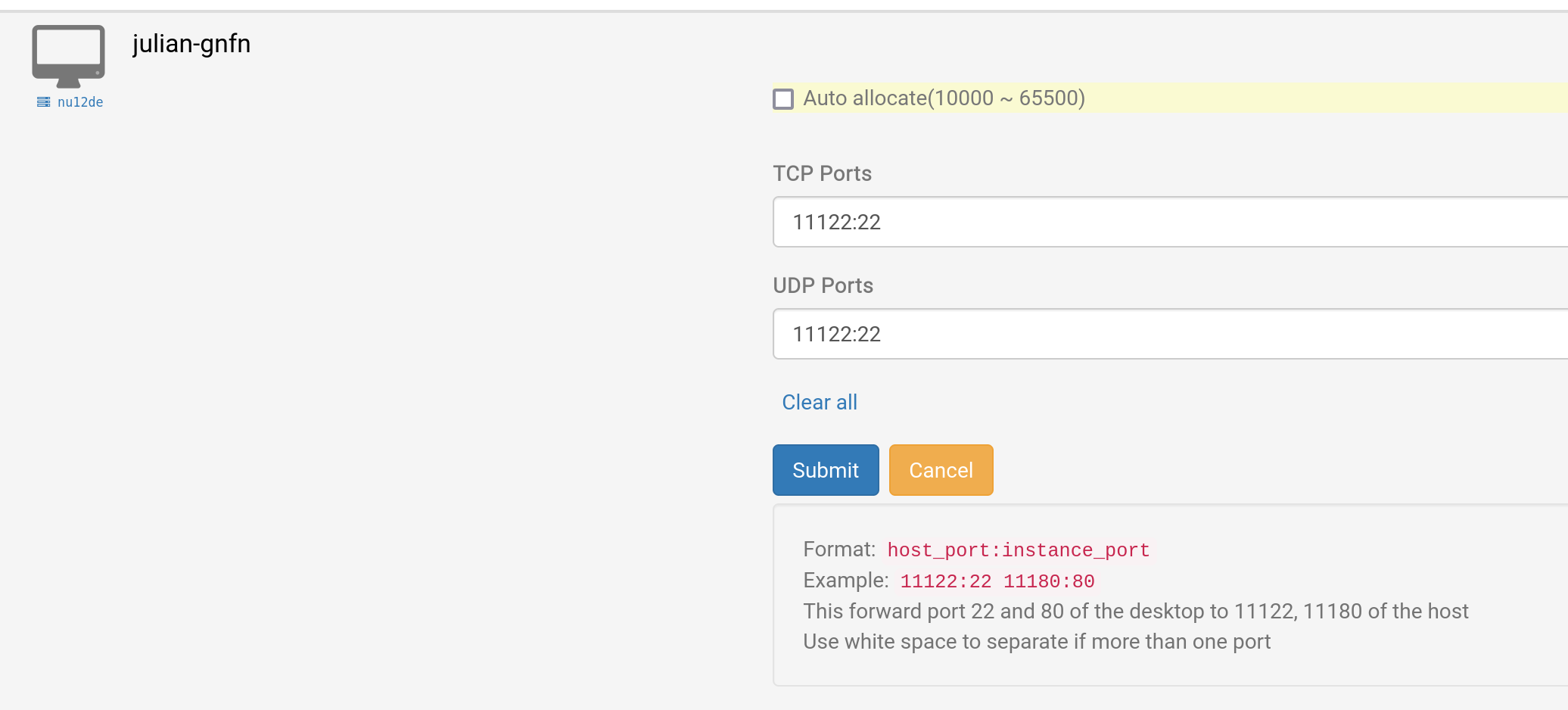
You can set up port forwarding either automatically or manually. Automatic allocation picks the next free port on the server. Typically, auto mode is favoured for simplicity, but manual allocation lets you specify each external port within the range 10000–65500 if needed. Any previously configured manual port forwards are retained and can be modified later.
Automatic Allocation
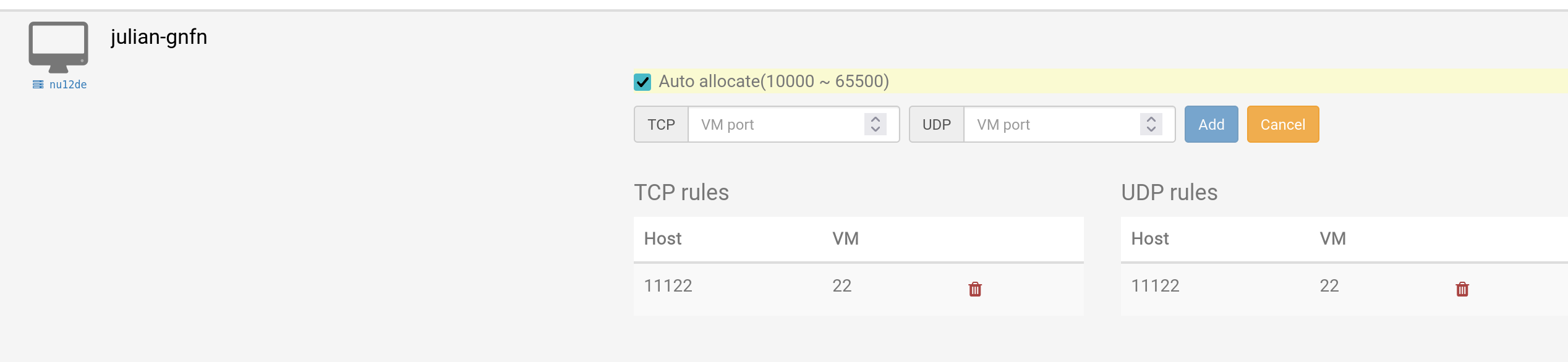
The screenshot below illustrates automatic allocation, along with a previously set up manual port forward that maps host port 11122 to VM port 22.
Manual Configuration
Here, both TCP and UDP traffic is forwarded via port 11122 to port 22 on the cloud desktop's VM for SSH. You can assign different ports for UDP and TCP if necessary.
Windows RDP Example
The following demonstration relies on manual allocation, though automatic allocation is certainly an option as well.
1. Locate your DaDesktop desktop, select 'Port forwarding', and configure the TCP ports for remote connectivity. Specify your external port number followed by 3389 (e.g., 66666:3389). Remember this port number; if you forget, simply reopen the Port forwarding settings to check.
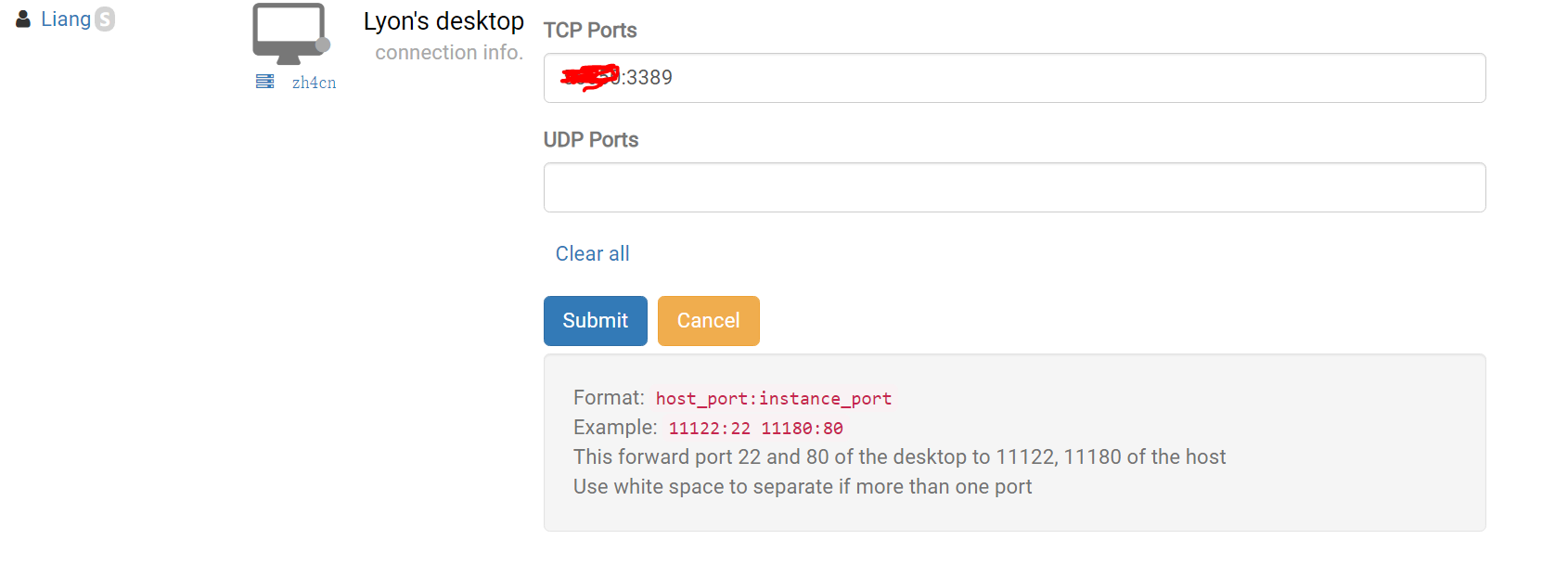
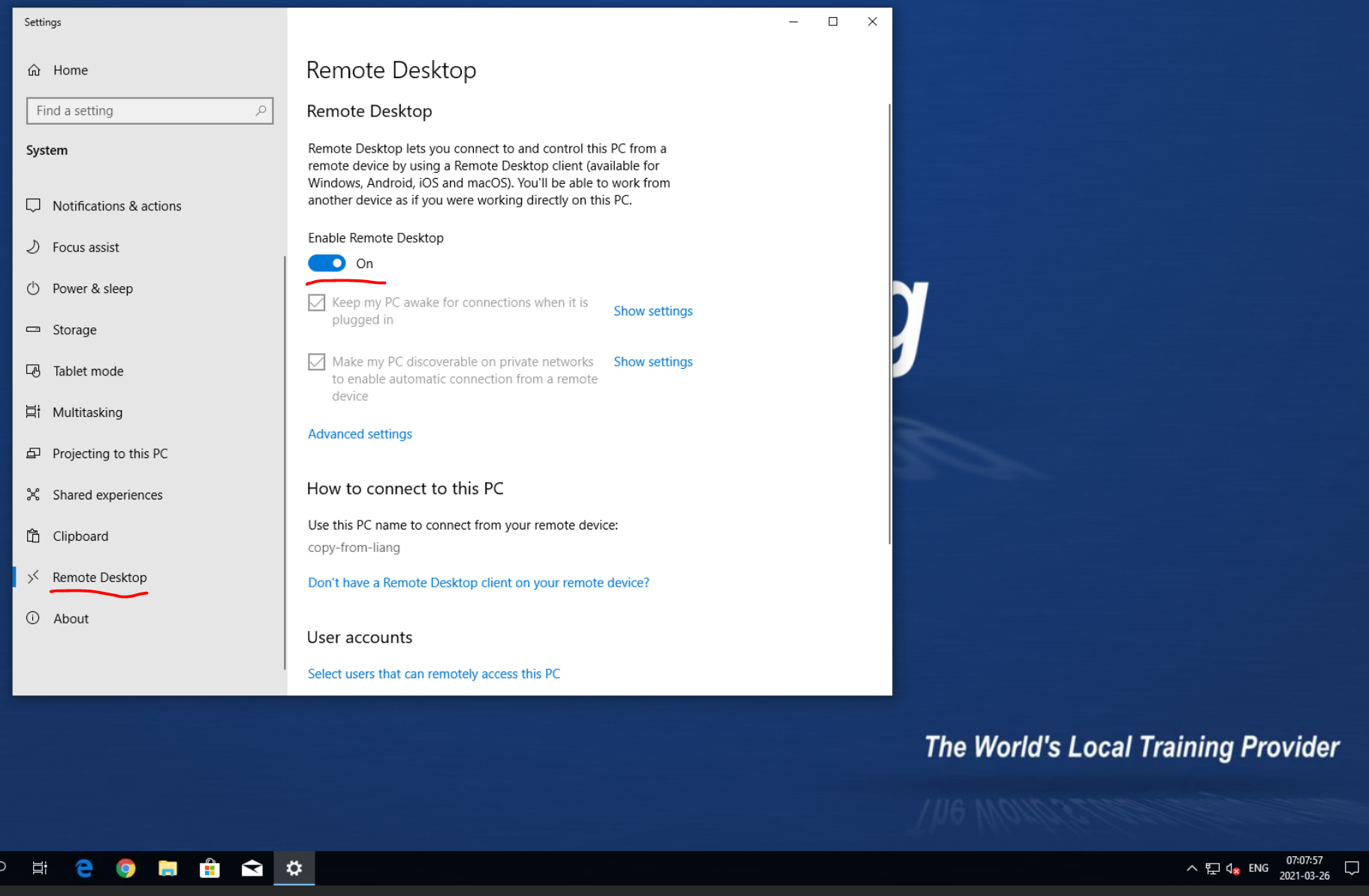
2. Submit the changes, then create a password within your Windows DD machine and click 'Enable Remote Desktop'.
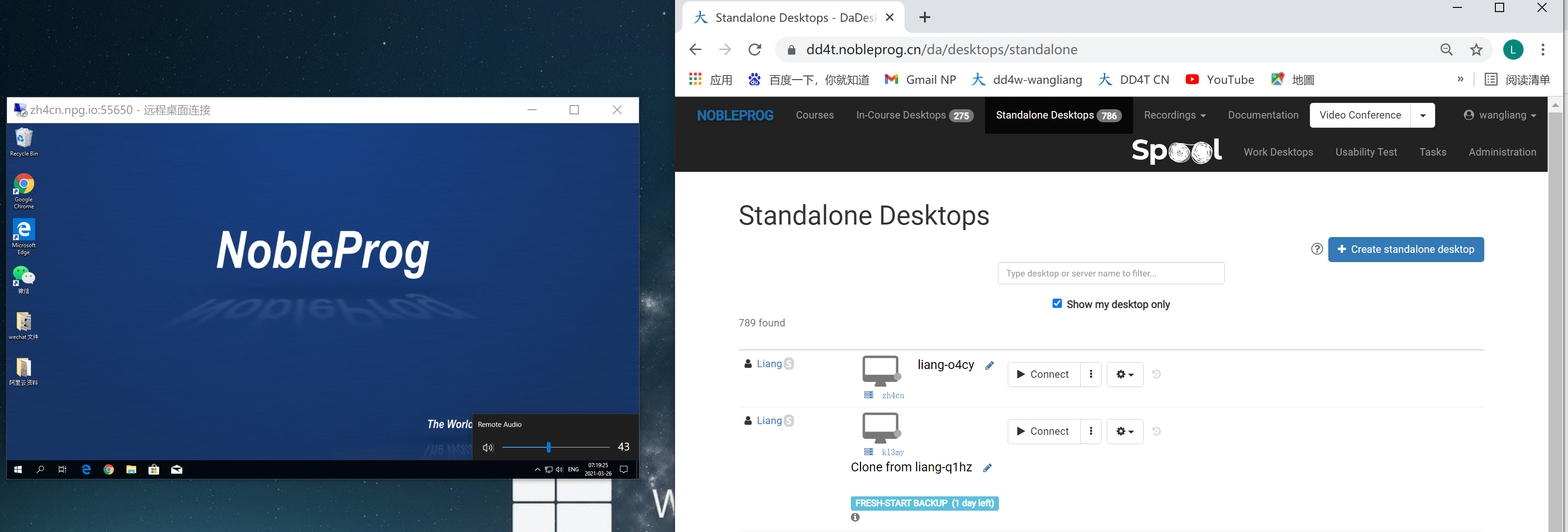
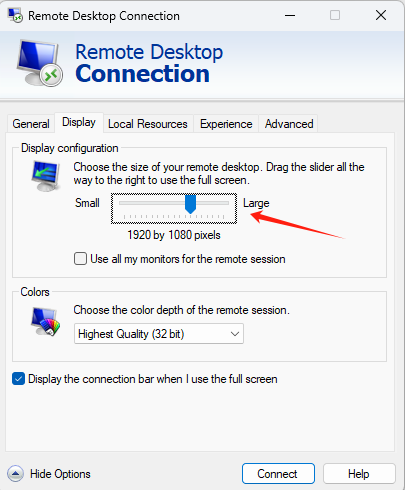
3. Return to your Windows device, launch Remote Desktop, and enter the server name along with the TCP port. For instance, if your server is zh4cn, you would enter zh4cn.npg.io:xxxxx. Under 'Show options', you can also set the display resolution for your remote session.

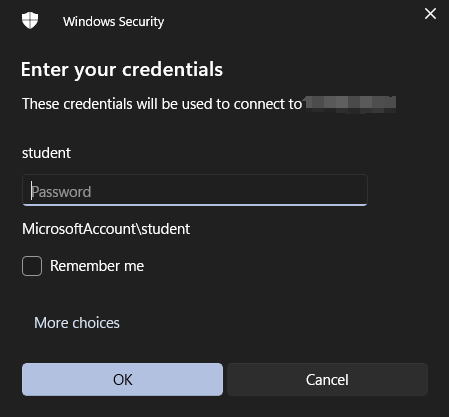
3.1 To log into your DaDesktop remote desktop, by default
'You must first reset your username and password inside the machine.'
Then proceed to connect the remote desktop.
4. After that, you can enjoy a remote desktop that leverages the DD template and your own device's sound card. You'll also be able to copy, paste, and output documents with ease. (The small window on the left shows a DD remote desktop with audio.)