
Oracle Server: Troubleshooting and Fixes
In most scenarios, applications prepared in a Fresh Start machine with DaDesktop (DD) behave as expected. Nonetheless, a small number of applications may exhibit issues after the cloning process, necessitating a few additional adjustments to restore full functionality.
System Specifications
-
Oracle Database 19c (other versions are likely to show similar behavior)
- Deployed using a Windows 10 template
Notes on Fresh Start Fixes
-
Keep in mind that this is a general guide for remedying this application's behavior in Fresh Start. The steps might vary according to your particular configuration setup.
-
Overview – The fix on a Fresh Start machine involves the following. During cloning, the hostname of the original machine is replaced with a new one; therefore, the previous hostname is no longer valid. We will switch to using 127.0.0.1 (localhost) instead of the original hostname. Additionally, surplus database listeners may be present, which can cause confusion, so removing them—as shown below—is recommended.
Remediation Steps
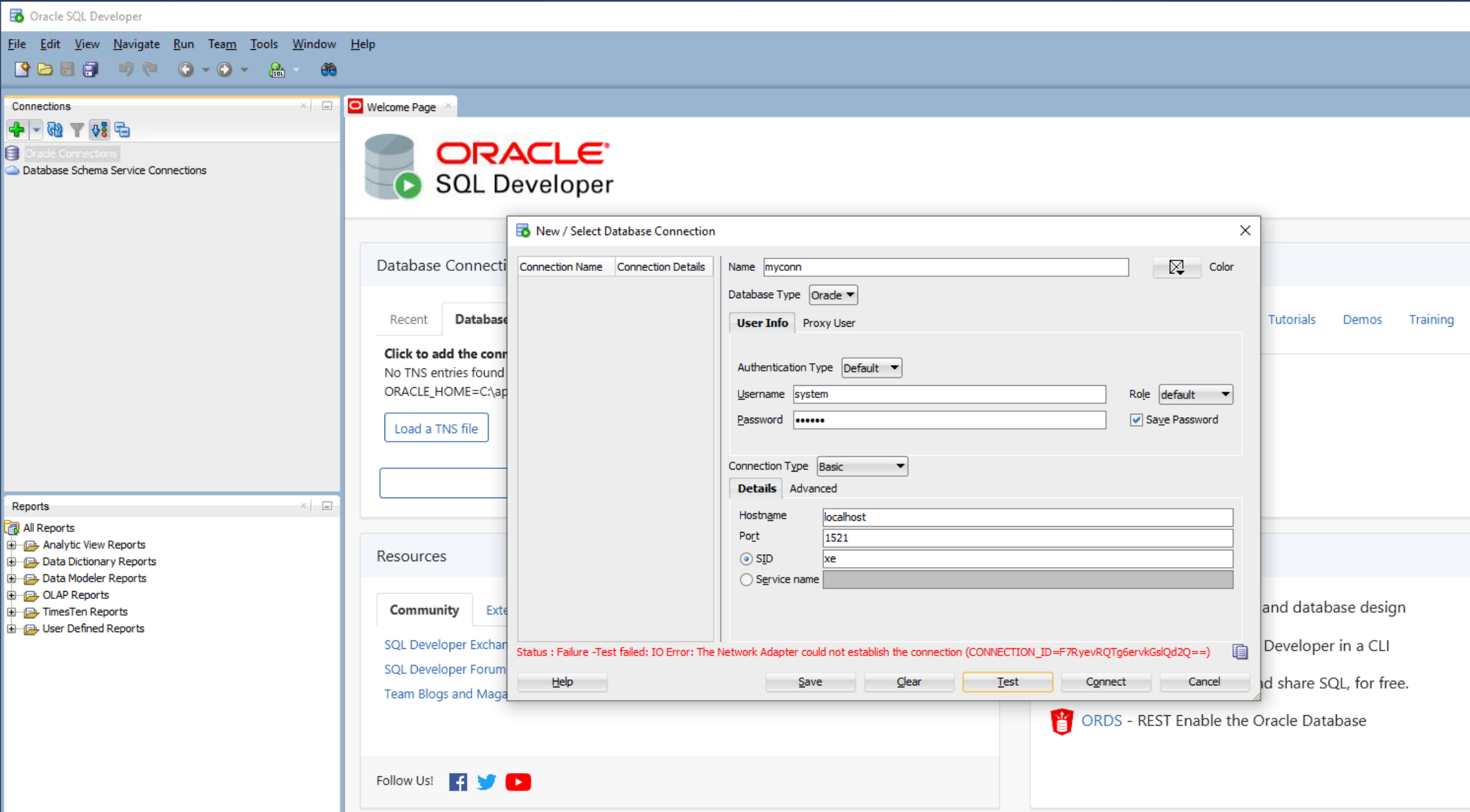
1. The following screenshot depicts the database network connectivity failure encountered while using the Oracle SQL Developer application.
2. Open the Oracle Net Manager application.
The XE service details will appear, displaying the original hostname (in this example, alexei-uuae.vm).

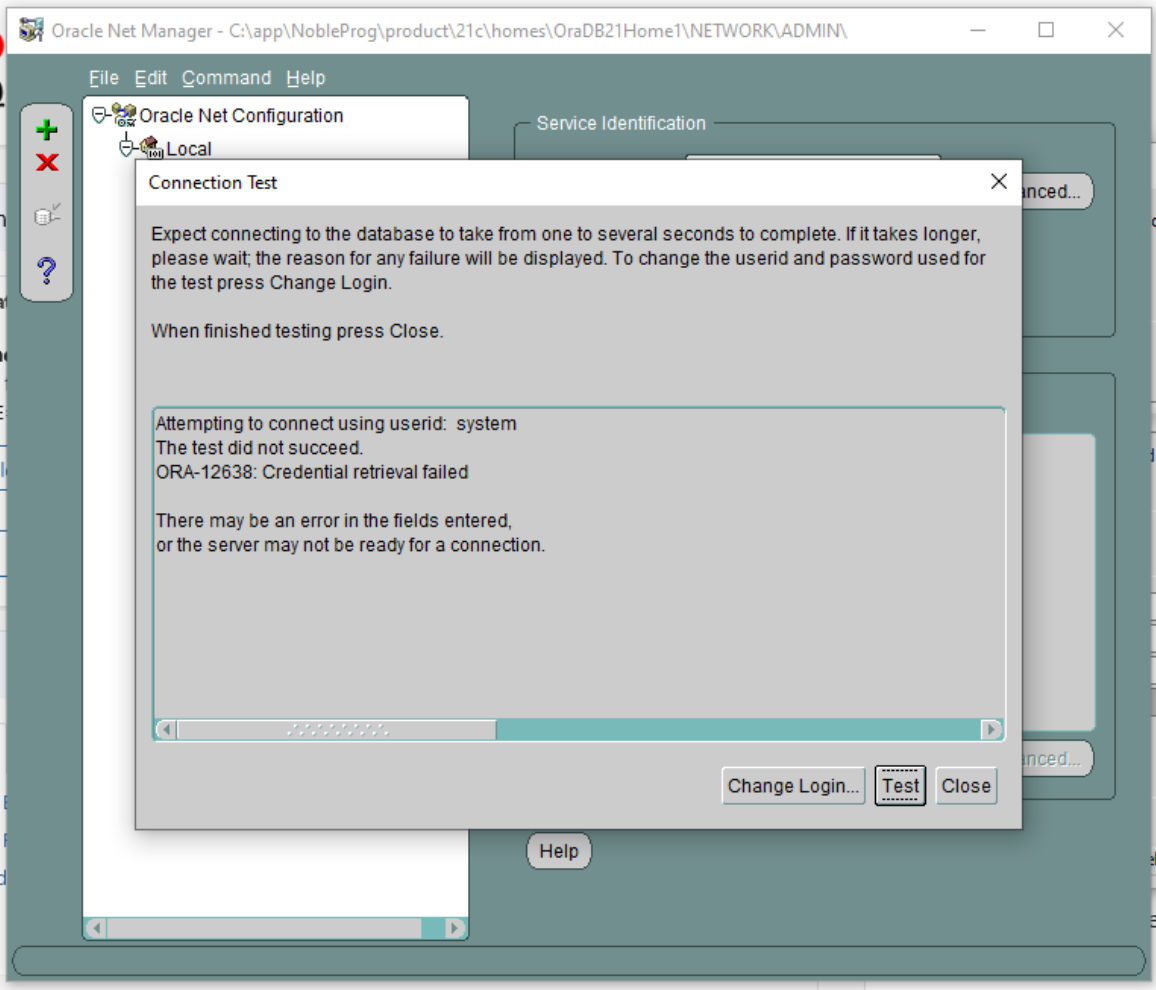
3. The connection test will fail when you enter the userid ‘system’ and its password.
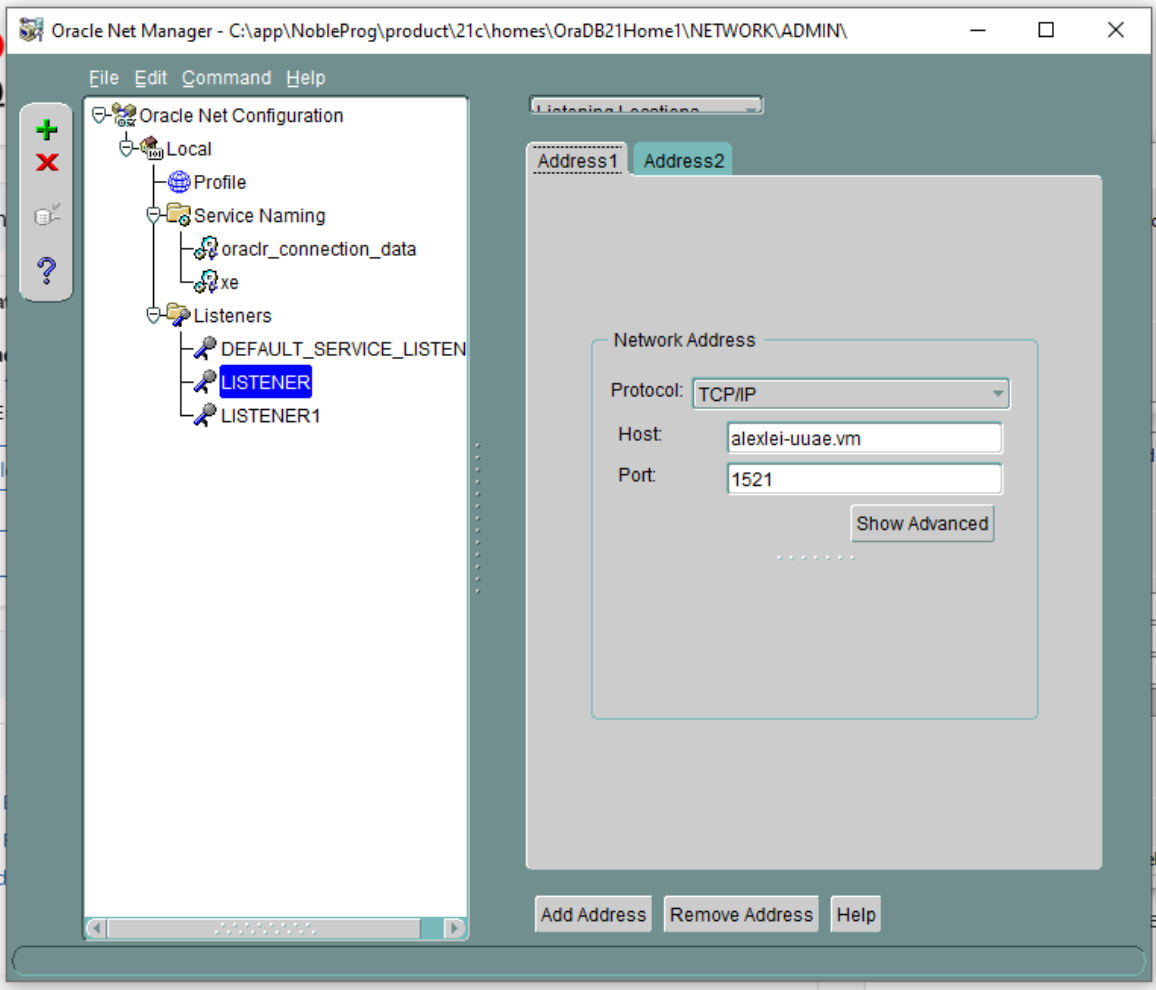
4. In Oracle Net Manager, check Listening Locations > Listener.
The host entry shows the original hostname ‘alexei-uue.vm’—this needs to be altered.
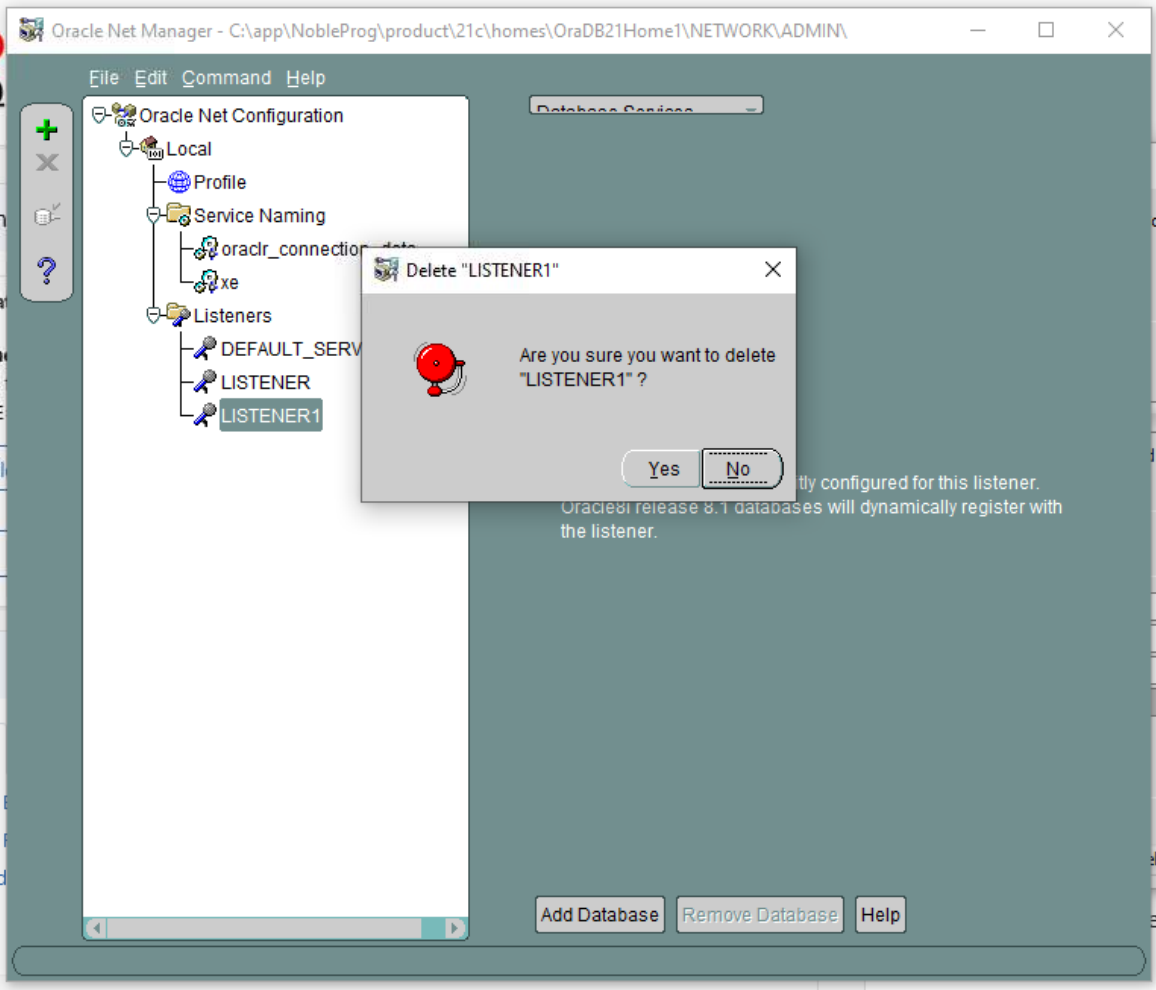
5. Notice that no databases appear as configured for LISTENER1. Inspect each listener for missing database services; if any such listener exists, delete it.
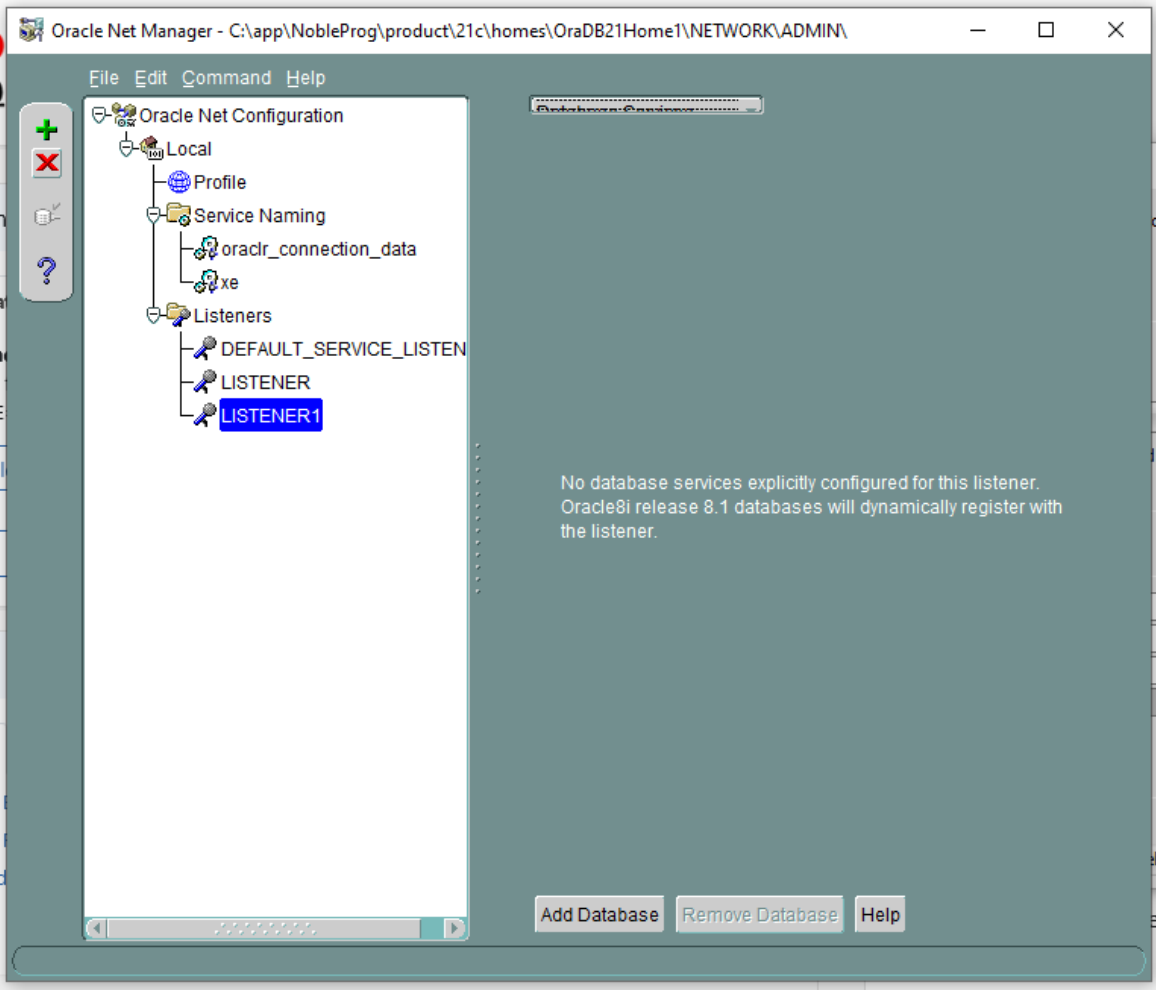
6. Therefore, delete LISTENER1 and confirm the action. Note: This scenario occurred during our setup and may not apply universally, but is provided as an illustration.
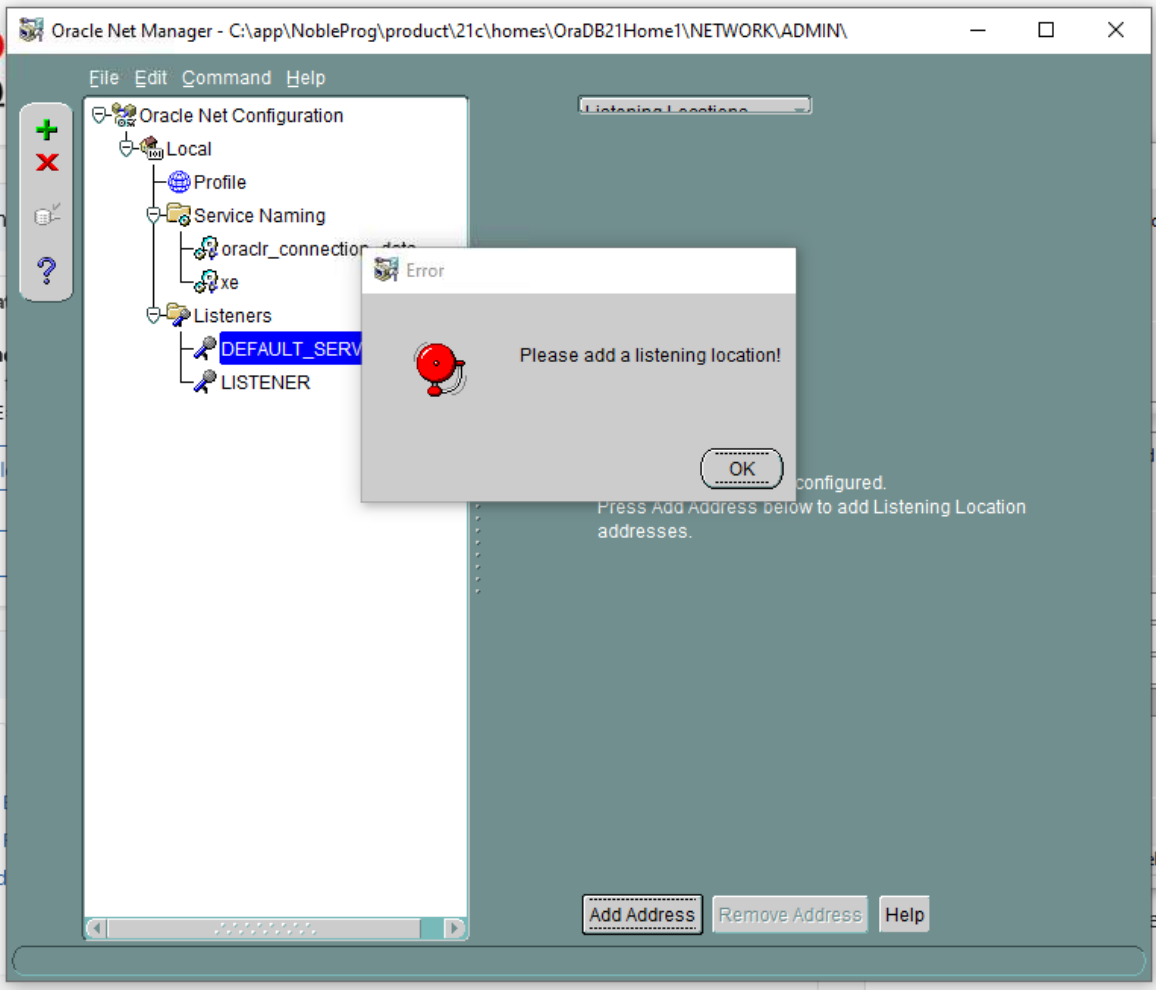
7. Examine the DEFAULT SERVER LISTENER. In this instance, you’ll see that no listening location is configured.
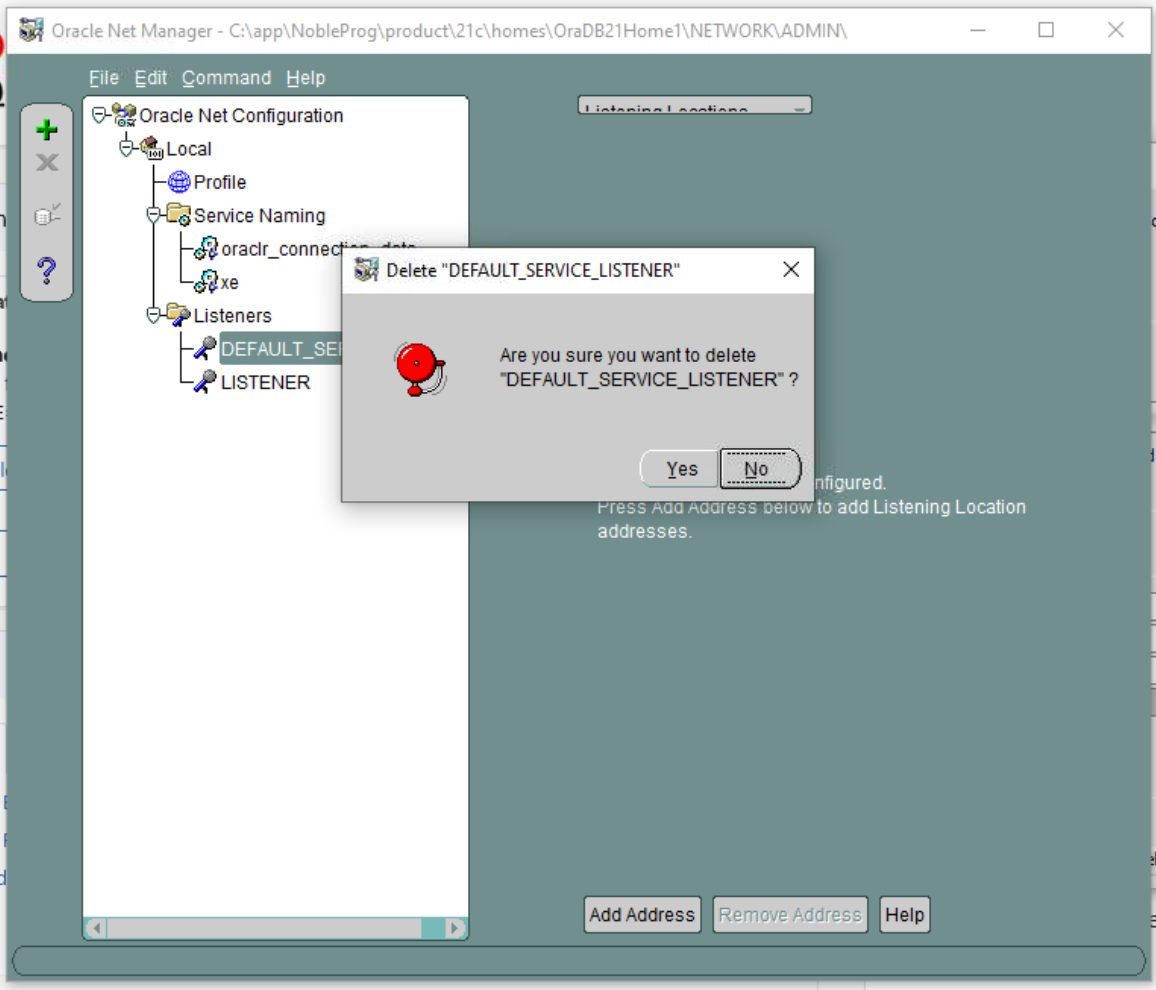
8. Consequently, delete the DEFAULT SERVER LISTENER.
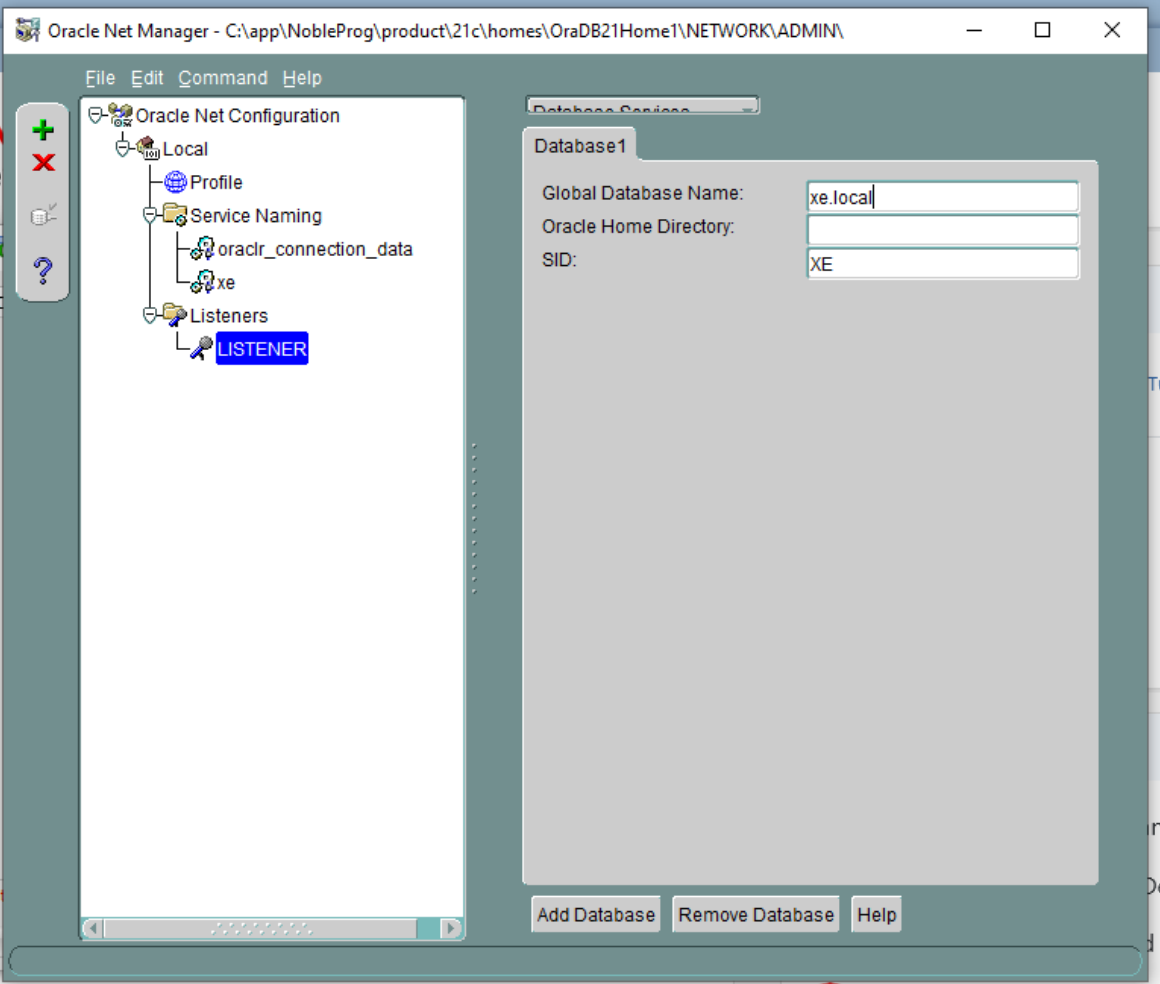
9. Now, with only the LISTENER remaining, note the current VM hostname—this will need to be updated, as cloning replaces it.

10. Replace the host value from ‘alexi.uuae.vm’ (or whatever appears in your case) with 127.0.0.1, keeping the port unchanged.

Next, configure the existing database:
11. Set the SID to XE and the Global Database Name to xe.local.
12. Save the network configuration and close the application.
13. Open a command prompt to restart the listener service.
Run the following commands: ‘lsnrctl status’, then ‘lsnrctl stop’.
And then ‘lsnrctl start’.
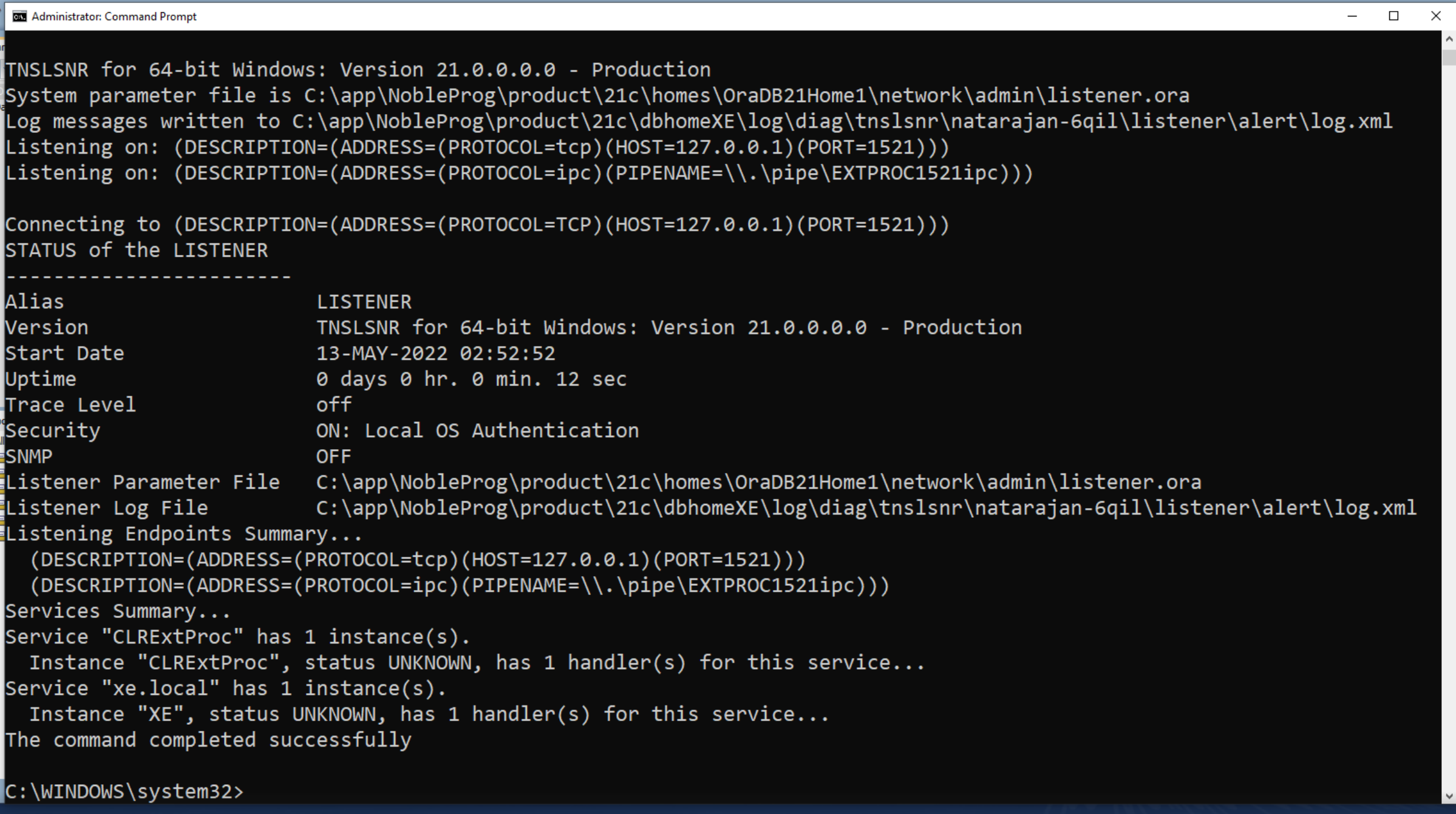
Open Oracle Net Manager once more.
14. In the Service Naming > xe section, remove the reference to alexei-vm.
15. Set the host to 127.0.0.1.
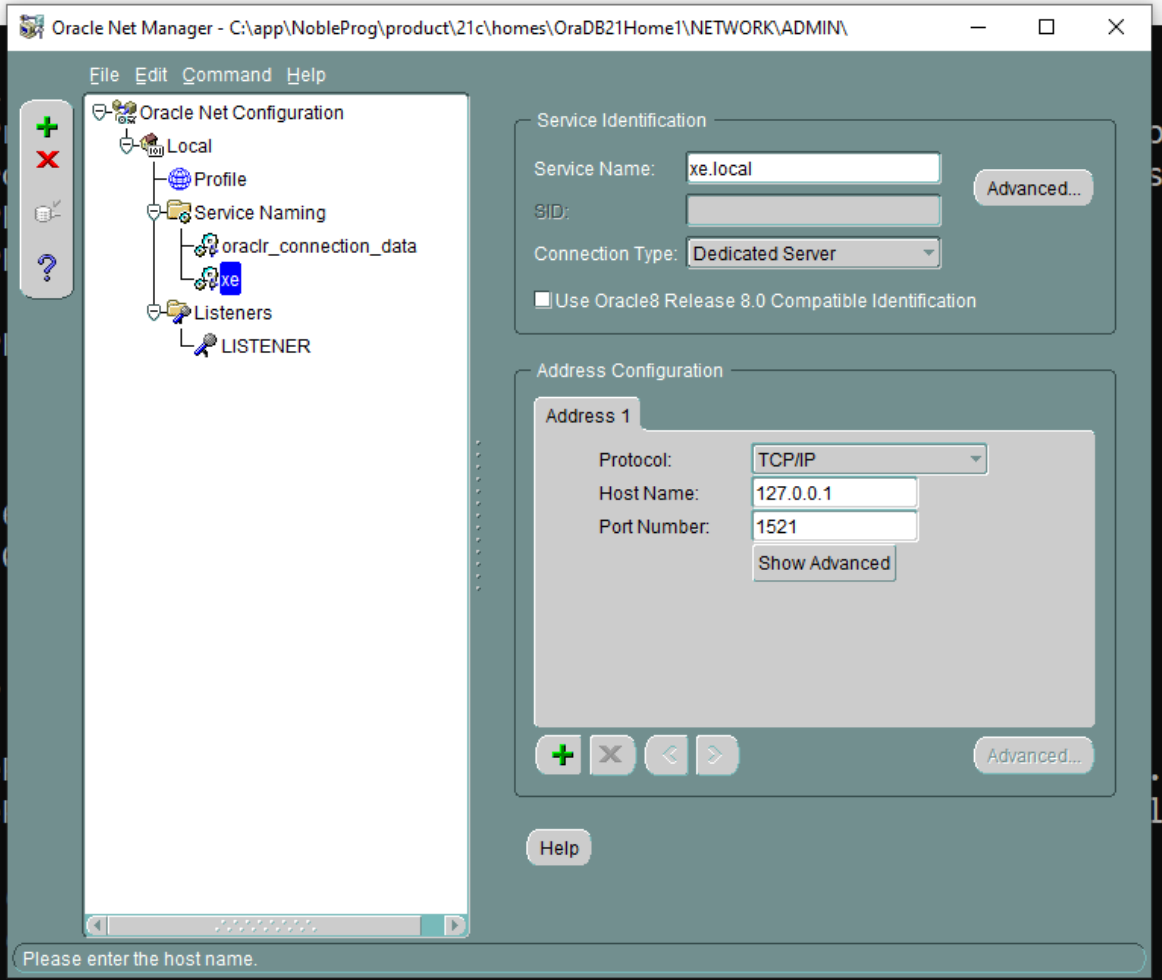
16. Save the network configuration.
17. Perform a connection test. Click the small button shown in the screenshot below to initiate the test.
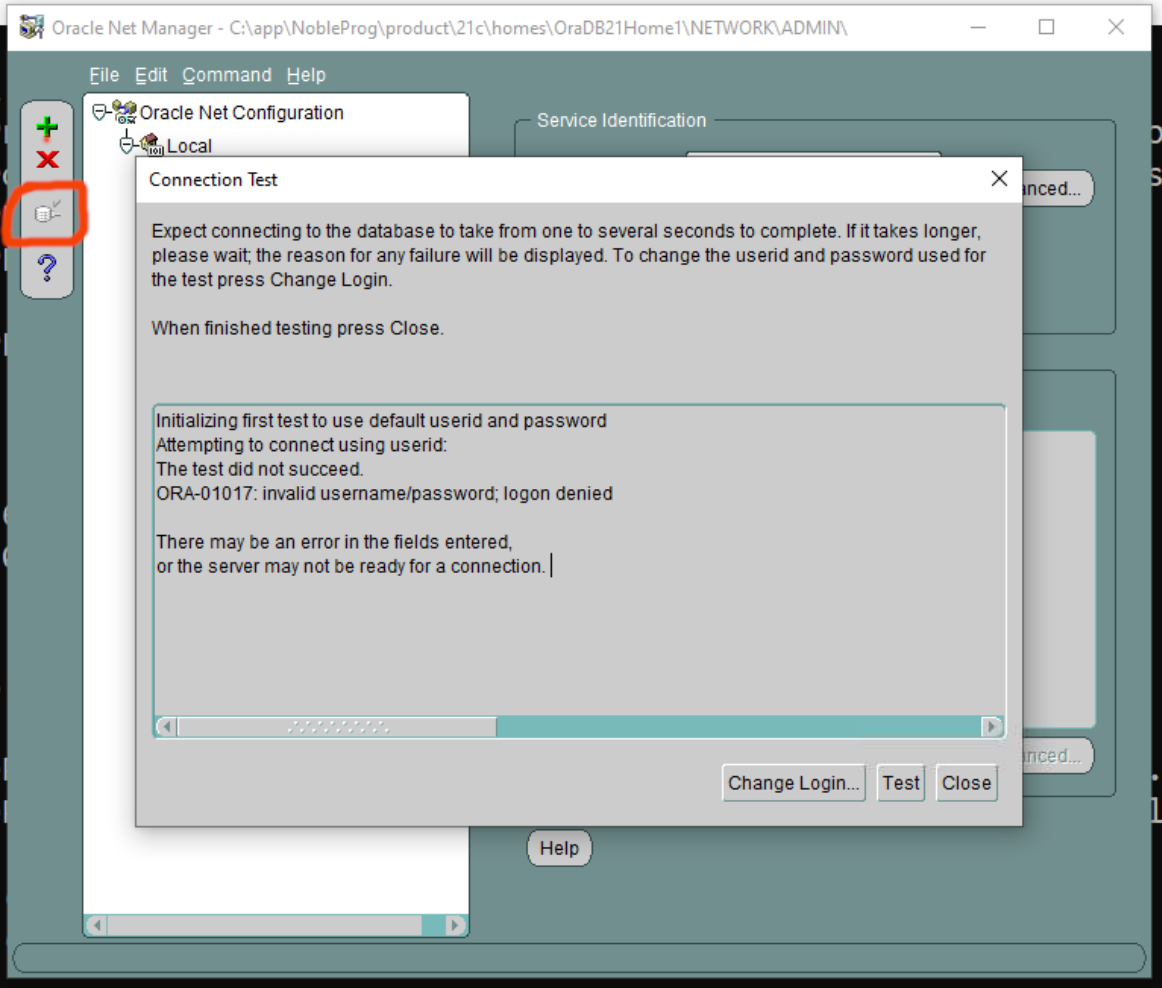
18. Update the login details: set the username to ‘system’ and enter the appropriate password.
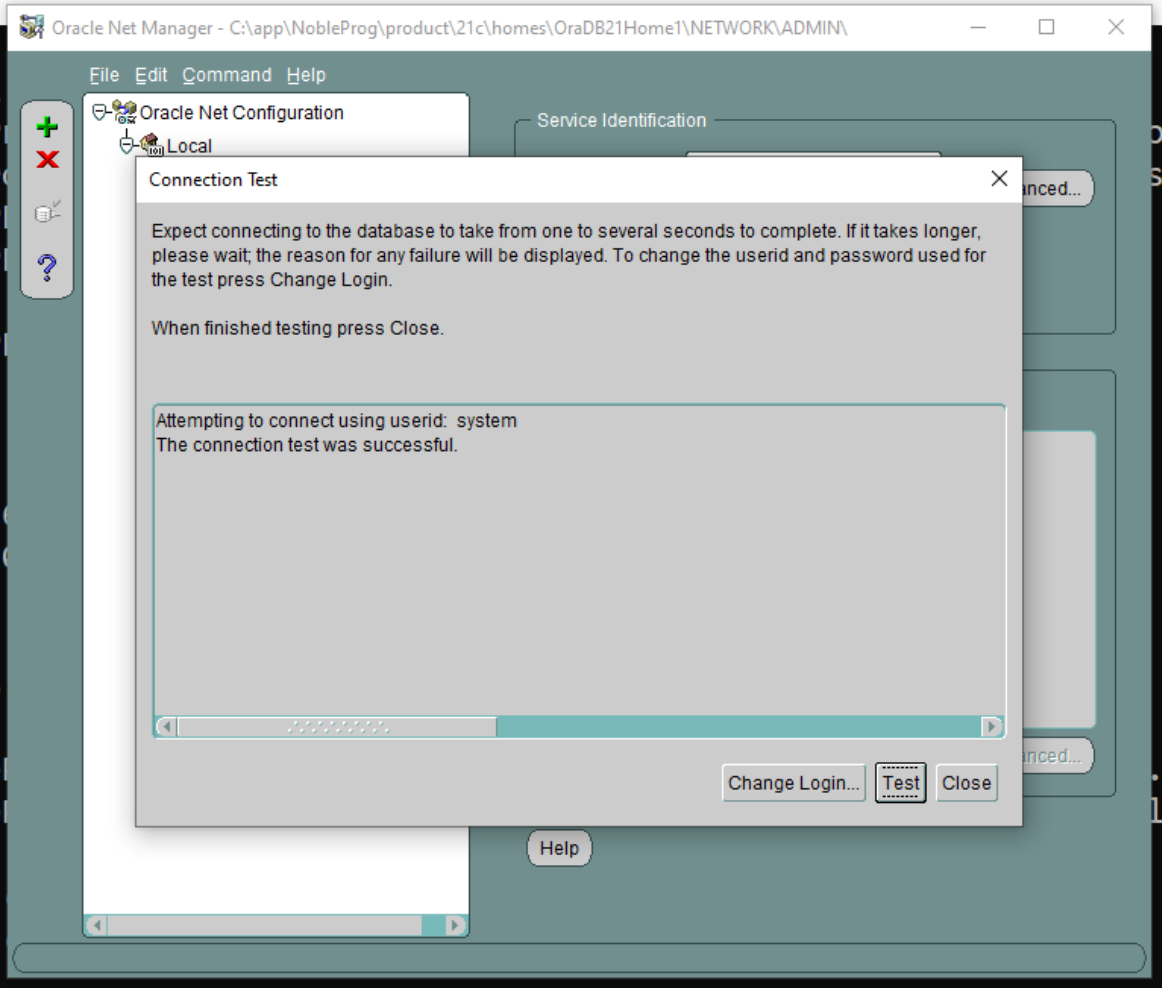
If needed, save the network connection.
19. Return to the main Oracle SQL Developer application and run the connection test once more.

20. Once the connection is successful, navigate to the Connections panel on the left. Expand Oracle Connections and verify that the database tables appear as expected.
21. Complete any remaining FreshStart machine configuration, then clone the machines to the Trainer and Participant sessions as needed.
The Oracle Database server should now function properly on both Trainer and Participant machines.
If issues persist, reach out to DaDesktop Support through the chat application—we’ll be happy to assist.