
Deploying a New DaDesktop Server
Setting Up a DD Node on GTHost / Hetzner Bare Metal Servers
These instructions are intended to assist you in setting up a DaDesktop Node (Server) on a bare metal Linux machine from providers like GTHost or Hetzner, commonly used here in Germany. Please be aware that these directions may be updated as the installation and deployment scripts evolve.
It presupposes you have already acquired a server and plan to install Ubuntu Jammy 22.04. Keep in mind that employing RAID0, or striping, can accelerate disk I/O if you have sufficient capacity across two or more drives. On Hetzner, this configuration must be specified using the 'installimage' tool while booted into Rescue mode.
Preparing and Installing the Operating System on GTHost / Hetzner Servers
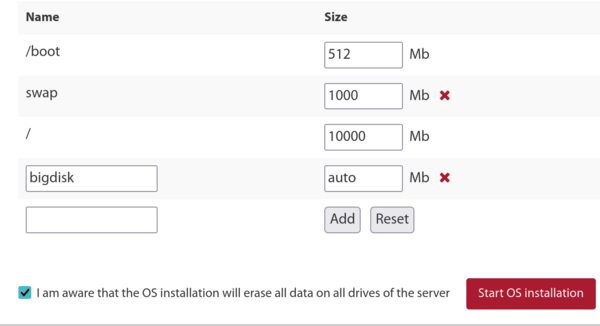
- Begin by connecting via SSH with the provided root credentials. Run 'apt update' and 'apt upgrade' to bring all installed software up to the latest versions. Afterwards, execute 'apt autoremove' to eliminate any outdated packages no longer needed.
- In the case of Hetzner, the system boots into rescue mode, requiring you to configure the distribution settings, software RAID (such as mdm), XFS, IPv4, and similar options before rebooting and proceeding with the upgrade. Typically, you can accept the default choices for the small /boot and /boot/esp partitions, which should use ext4 rather than XFS, and you may omit a swap partition since it isn’t necessary. Assign XFS to the root (/) partition and allocate the remaining disk space to it.
- For LeaseWeb or other providers, it is necessary to convert the root (/) filesystem to XFS from ext4 or btrfs. The guidance that follows is only a rough outline; ensuring that the root partition uses XFS is more complex than simply designating a separate /bigdisk for XFS, because any filesystem modifications must be performed outside the operating system—altering the type of the mounted / filesystem cannot be done safely while it is in use.
-
To establish an XFS filesystem, employ the provider’s tool if available, as it simplifies the task. Alternatively, from the rescue system, you can execute a command like:
mkfs.xfs -f /dev/mdx (this reformats the root partition with XFS; -f forces an overwrite).
Please note that we no longer create /bigdisk as a distinct partition; instead, it is now simply a directory under /. - Mount the XFS filesystem by running 'mount -t xfs /dev/mdX /' from outside the operating system, or use the hosting portal to accomplish this.
- Should you still be employing a separate /bigdisk partition (which is now uncommon), add 'defaults,nofail 0 0' to /etc/fstab so the system can still boot even if that partition fails to mount.
- Run 'systemctl daemon-reload' to have systemd pick up any changes in /etc/fstab.
- Execute 'mount -a' to verify that all partitions are created as intended, and then confirm using 'df -T'.
-
Reboot the server.
Executing the DaDesktop Installation Script
- Connect to the server via SSH, for example svr@xxxxxxxxx.
- Proceed to install using the DaDesktop installation script.
- Download it with: curl https://www.dadesktop.com/d > d
- Now, the base operating system needs to be upgraded from 22.04 to the most recent Ubuntu release—currently 23.10 (Mantic), with 24.04 (Noble) expected soon.
- The recommended approach is to use the 'update-os' script found at /apps/dadesktop_npnode_deploy/modules/00-upgrade-os. This simplifies the process compared to performing distribution upgrades manually by swapping the apt sources from jammy to mantic (and later to noble) in a single operation rather than multiple steps. Note: while upgrading across two versions in one go is generally discouraged, the minimal set of installed packages makes it quite safe.
-
Should you run into DNS resolution problems during the distribution upgrade (as we did on one occasion), you can remedy this with:
rm /etc/resolv.conf ; echo "nameserver 8.8.8.8" > /etc/resolv.conf - You may optionally define a hostname, for instance lo33uk.npg.io, particularly if you need a specific identifier for the DD node, perhaps reusing one that was configured earlier. Reboot if required to apply the hostname change.
- Next, execute the primary script to install the DD Node. Consider using tmux to safeguard against SSH disconnections during the process; then, from the directory where the script was downloaded, run 'bash d'.
- Monitor the on-screen log messages for any errors. The server’s IP will be automatically added to the NP access list, though it may take a few minutes for the whitelist cron job to refresh before you can proceed.
- Keep an eye on the script’s progress, addressing or reporting any problems that arise.
- Launch the cleanup script located at /apps/dadesktop_npnode_deploy/modules/00-cleanup, which eliminates numerous unnecessary packages and downgrades certain ones.
- Execute /apps/zabbix-agent/services/test-all.sh to inspect for any remaining problems.
- If any packages are listed as unmaintained, remove them with 'apt purge xxx, yyy'. Also, delete any broken symbolic links that appear.
-
Finally, reboot the system and verify that everything is working correctly.
Validating the DD Node Post-Installation
- In the DaDesktop interface, locate the new DD server entry and test it using TPAPI or similar tools.
- Assign start and expiration dates for the server within DaDesktop, and attach it to a datacenter if necessary.
- Monitor the new server’s operation through Zabbix and resolve any issues that surface.
- Perform a test by deploying a Standalone instance on the server and running it.
- Include the server in the appropriate Datacenter as needed.
- Optionally, configure Billing rules for the new server.
- If needed, replicate the operating system templates onto the server.
- When applicable, inform the Trainer or Coordinator to utilize this specific server for a targeted course.
Enjoy the results!