
Setting Up Standalone Desktops
To set up Standalone Desktops:
- Click the 'Standalones' option in the top menu
- Click 'Create New Standalone Desktop'
- A dialogue box will appear as shown below
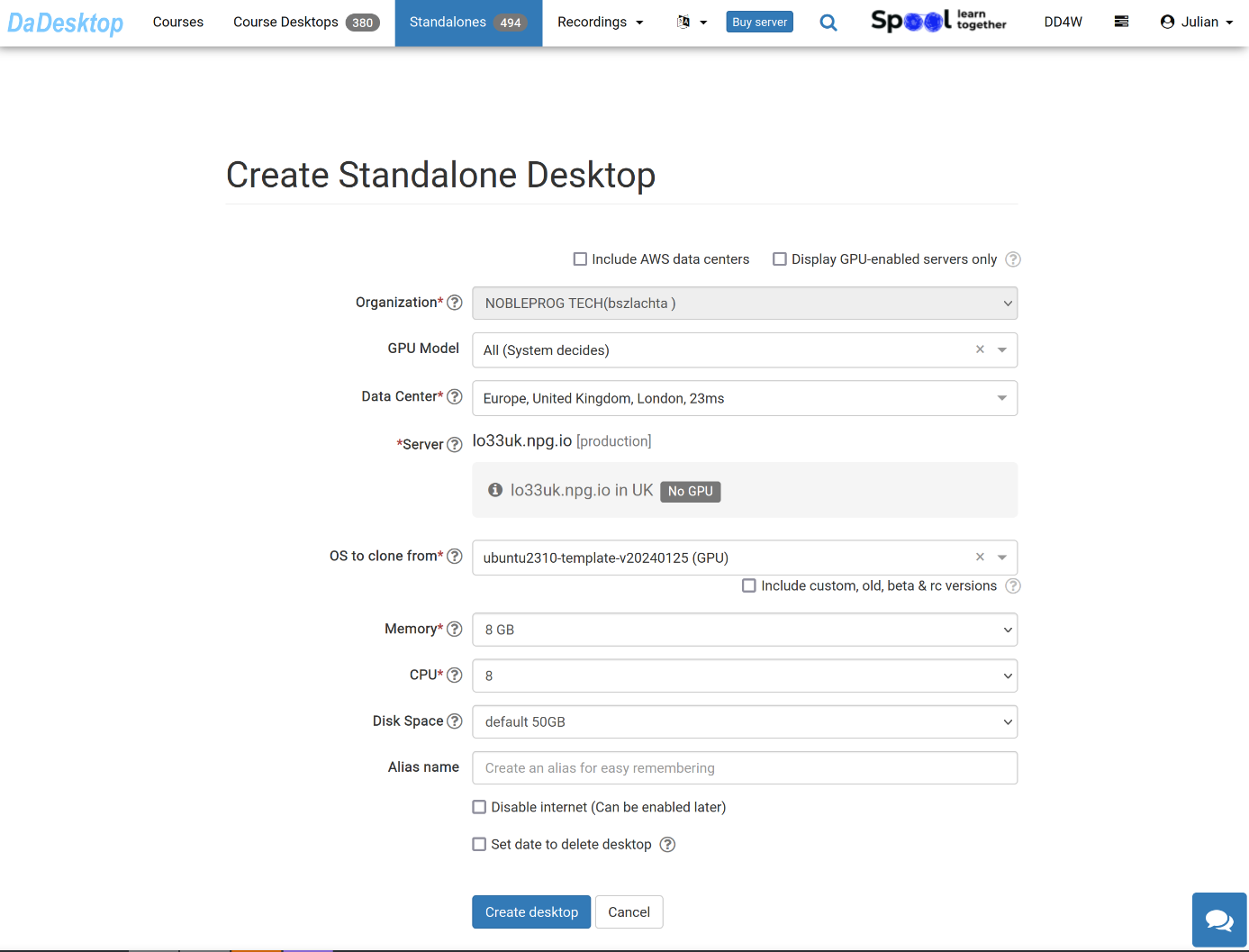
Each field is described in detail below:
-
GPU Model
Select the GPU and type, if needed. Checking the 'Display GPU-enabled servers' box will filter to show only servers with available GPUs. -
Datacentre / Server
Pick the datacentre region and server nearest to your location in Germany. -
OS to clone from
Several Operating Systems are available.
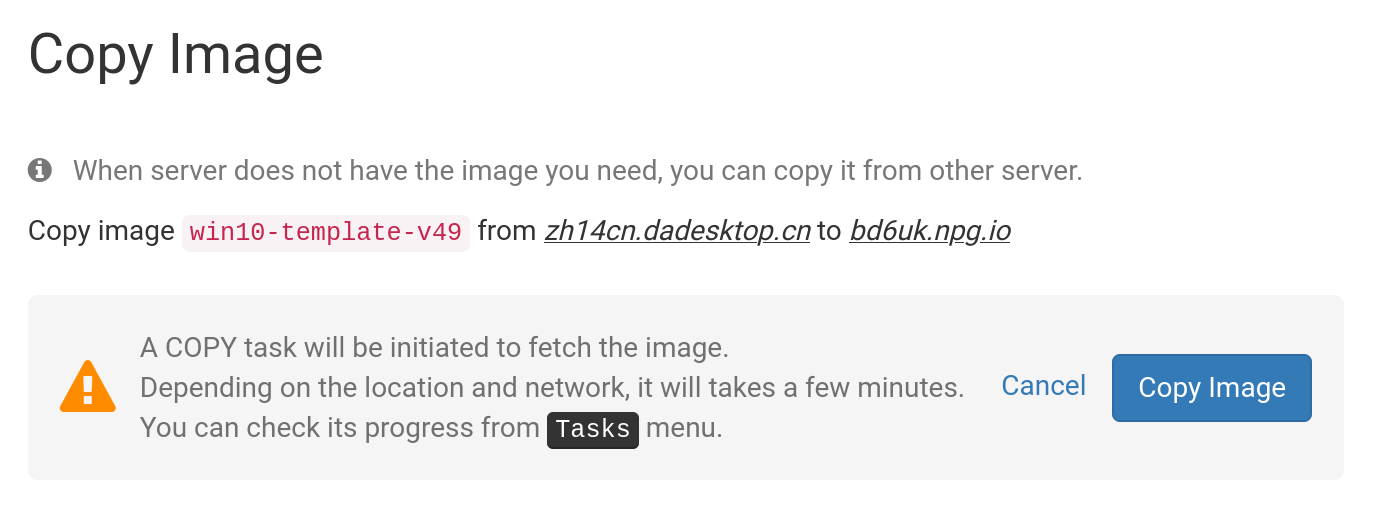
If a template is labelled 'Copy Required', it is available but must first be copied to the selected server before it can be used. Generally, only Windows OS may involve extra fees. -
Include Custom, RC, and Old Versions
DaDesktop regularly updates OS templates; however, if you encounter issues with the latest template, you can try using an earlier version.
-
Memory
Specify the memory limit for the desktop. Remember that you are initially restricted by the server's resources. Different servers may have different memory capacities. If you need a higher limit, please contact us via Support Chat. -
Label
Enter an alias if you'd like a simpler name for your standalone.
Operating System Template to Clone
You have several choices when selecting and configuring the OS template to use.
Options include Windows or a range of Linux distributions like Ubuntu, Debian, AlmaLinux, and more.
A pre-built template, usually identified by a version number (e.g., V51), can be used.
Alternatively, we now also offer the ability to build fully up-to-date Linux templates. The 'Build New' Linux templates use a completely different build process, where the Linux sources are employed alongside a script that applies the required DaDesktop customisations. This ensures the template is always current, secure, and easier to deploy and maintain.
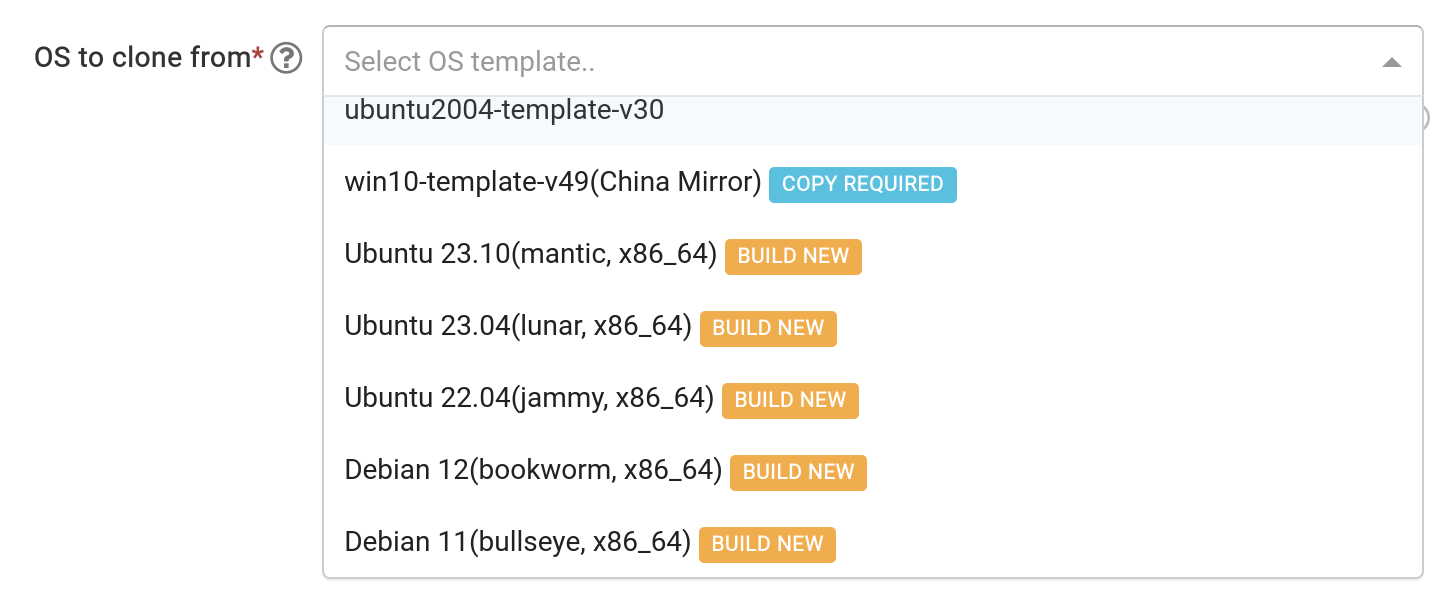
Building the OS Template
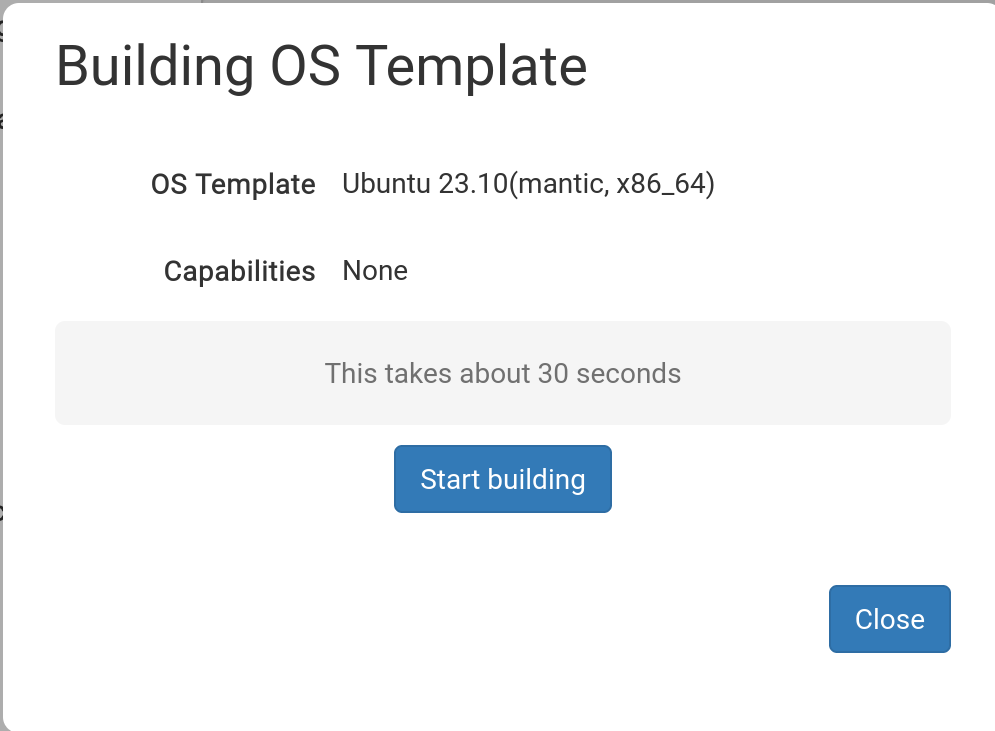
After you've chosen the desired template, the pop-up below will appear.
Click 'Start Building'
Your standalone will now be built. Please note that the build process may take more than 30 seconds; if it seems to have stalled, just wait a little longer.
The Built Template Is Now Available

With the template now built, you can modify any options as needed, then click 'Save and Create Desktop'.
Your standalone is being set up; this normally only takes a few moments, much faster than building the template itself.
Your new standalone is now ready. In the example below, it's named 'julian-6iqm', but you could have assigned a more descriptive label if preferred.
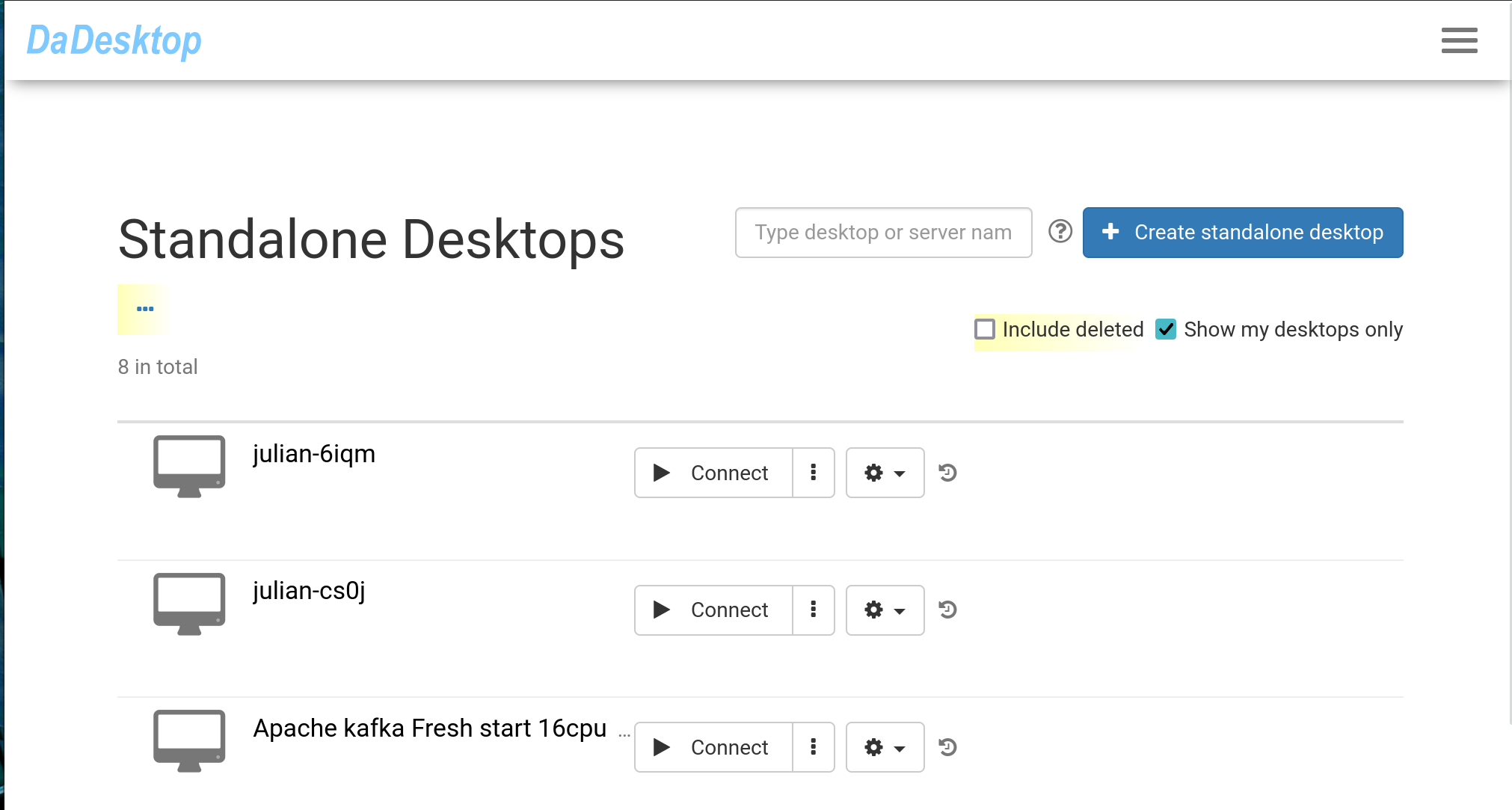
Click 'Connect' to launch and access the standalone machine.