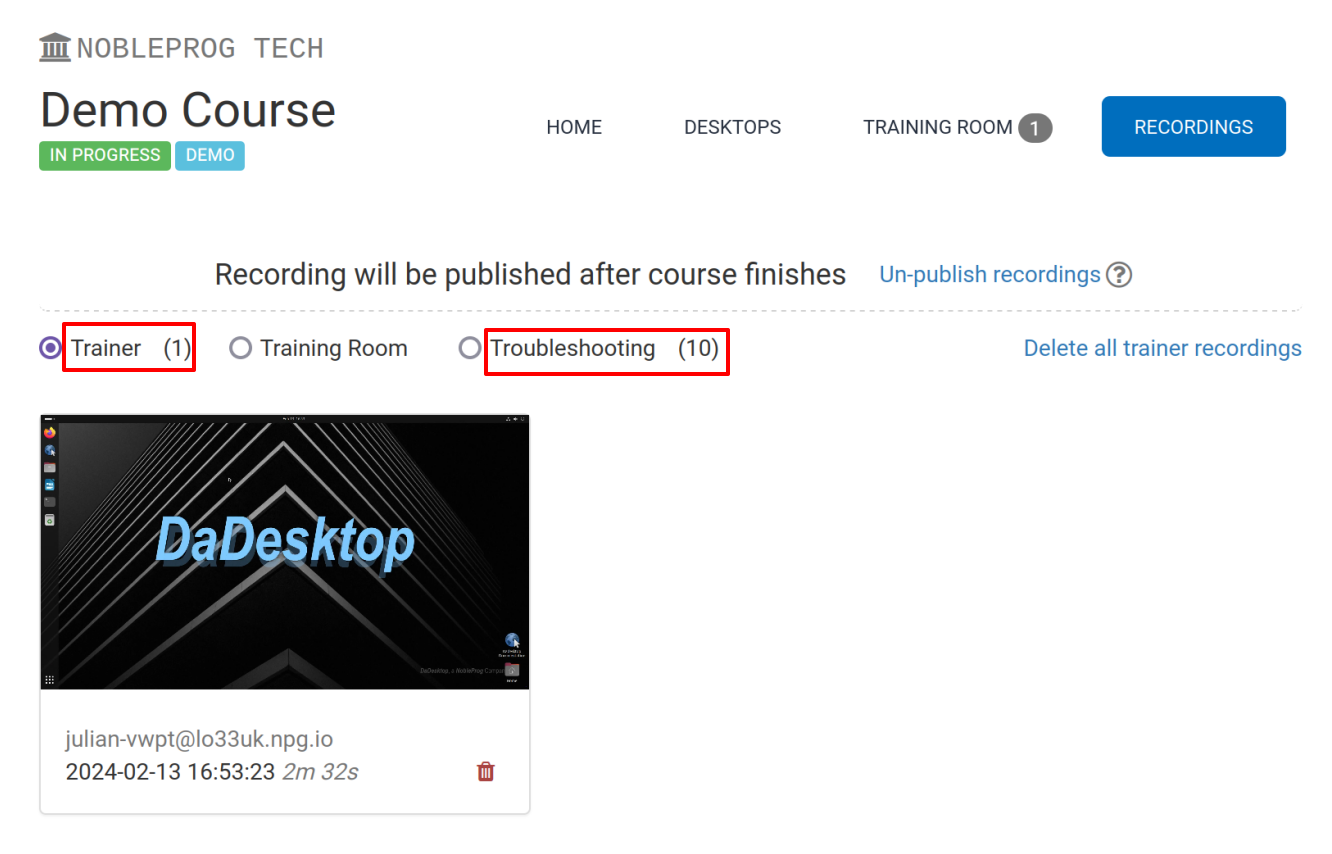
Trainer Recordings
DaDesktop offers several methods for capturing desktop activity and course sessions. These include Troubleshooting recordings, Training Room recordings, and Trainer recordings.
Trainer recordings capture the Trainer's DaDesktop environment. Trainers can initiate these session recordings by following the steps below.
- Click the three vertical dots to open a small dropdown menu, then select 'Connect (with session recording)'
-
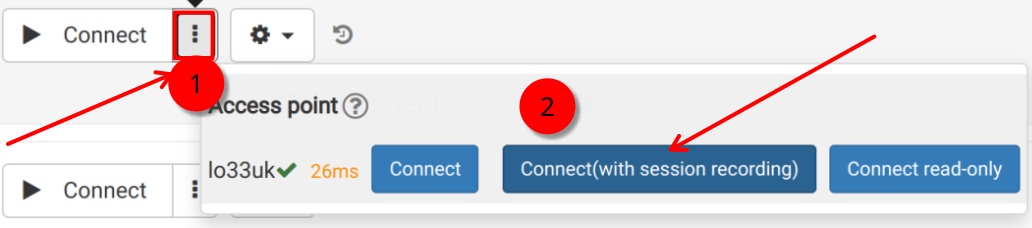
An audiovisual recording of the Trainer's machine is created, but it cannot be accessed until after the virtual classroom is closed, at which point the recording is finalized. Note: SuperAdmin users have an extra menu option that allows them to watch live recordings as they happen.
- To access and edit recordings, click the settings 'cog' icon and open the Recordings menu.
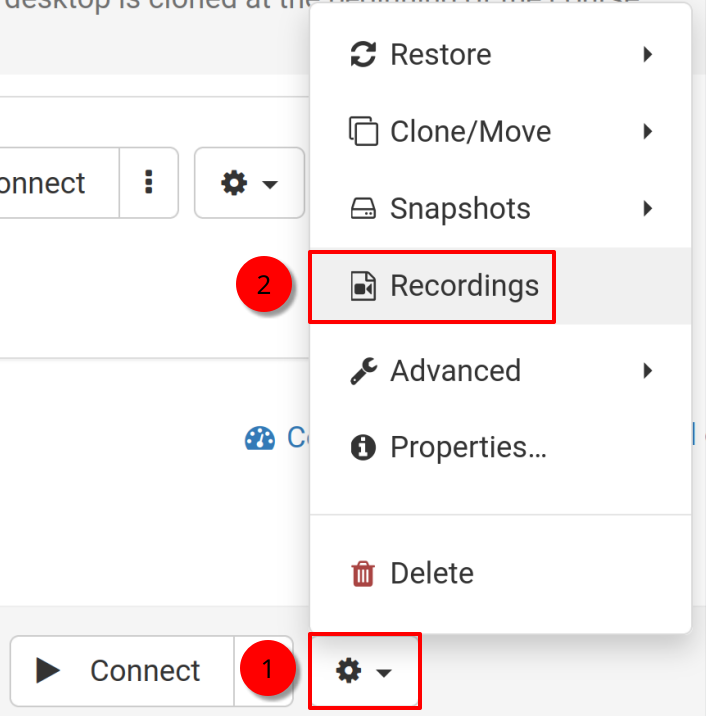
Recordings
Trainer recordings of the trainer's machine can be viewed in two different ways.
- Recordings can be accessed via the Recordings menu, where they can be played or deleted as needed. The double wrench icon denotes 'Troubleshooting Recordings' – these are generated automatically and are not intended for presentation, only for diagnostics whenever required.
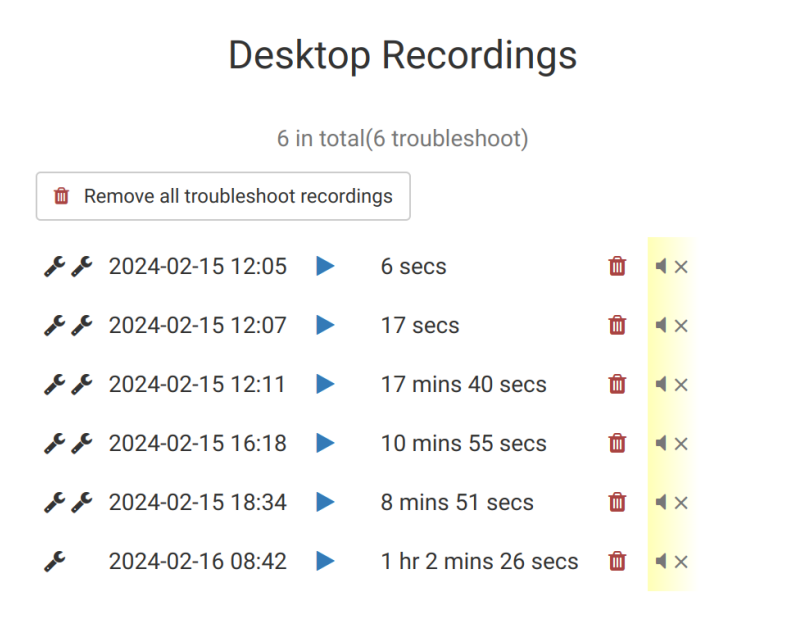
2. By navigating to the 'Recordings' tab within a course, you can view all Trainer recordings, Training Room recordings, and Troubleshooting recordings.