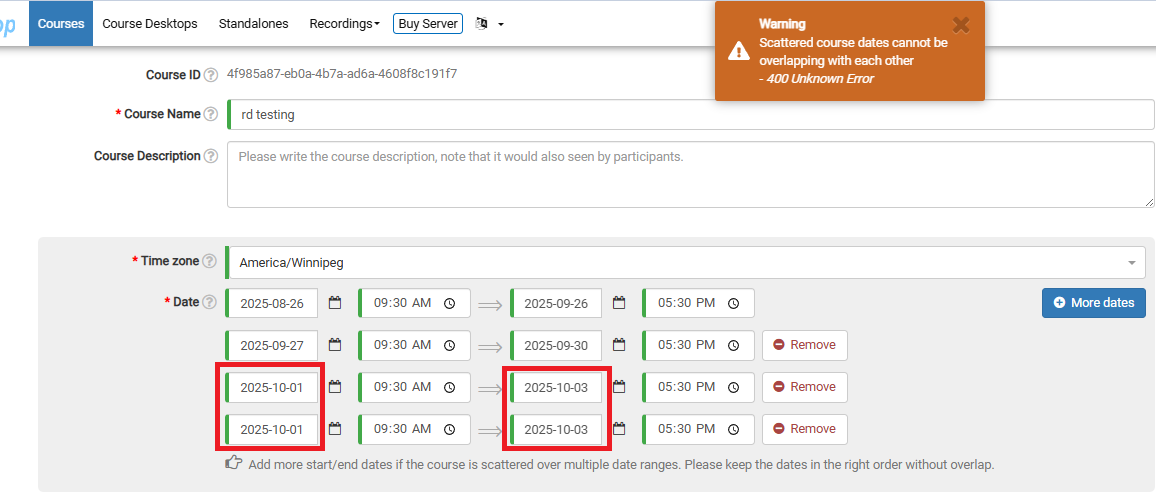
Setting Up Multiple Course Dates
During course creation, you have the option to define multiple dates for the offering. This lets you tailor availability to your participants' needs and better fit your own calendar.
In the dates section of the course form, press the "More dates" button. This will instantly insert an additional date selection row.

Feel free to include as many non-overlapping date ranges as necessary.
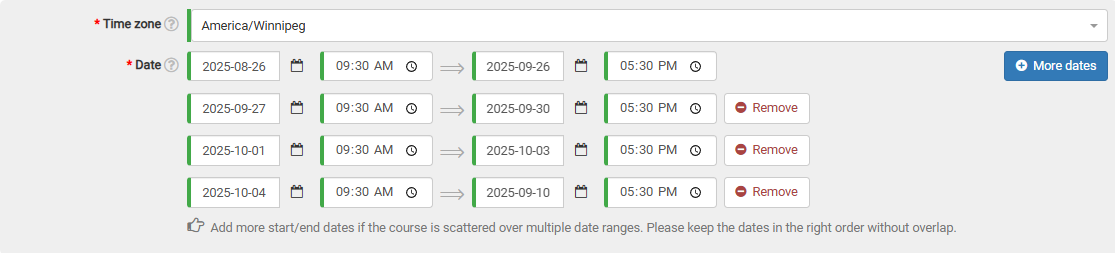
If any ranges do overlap, an alert will appear at the top of the form when you attempt to submit. In the example below, I've accidentally picked two identical dates.