
Creating a Desktop from an OS Template
To launch a new desktop using an OS template:
- Navigate to the course's Desktops menu
- Select "Create From OS Template"
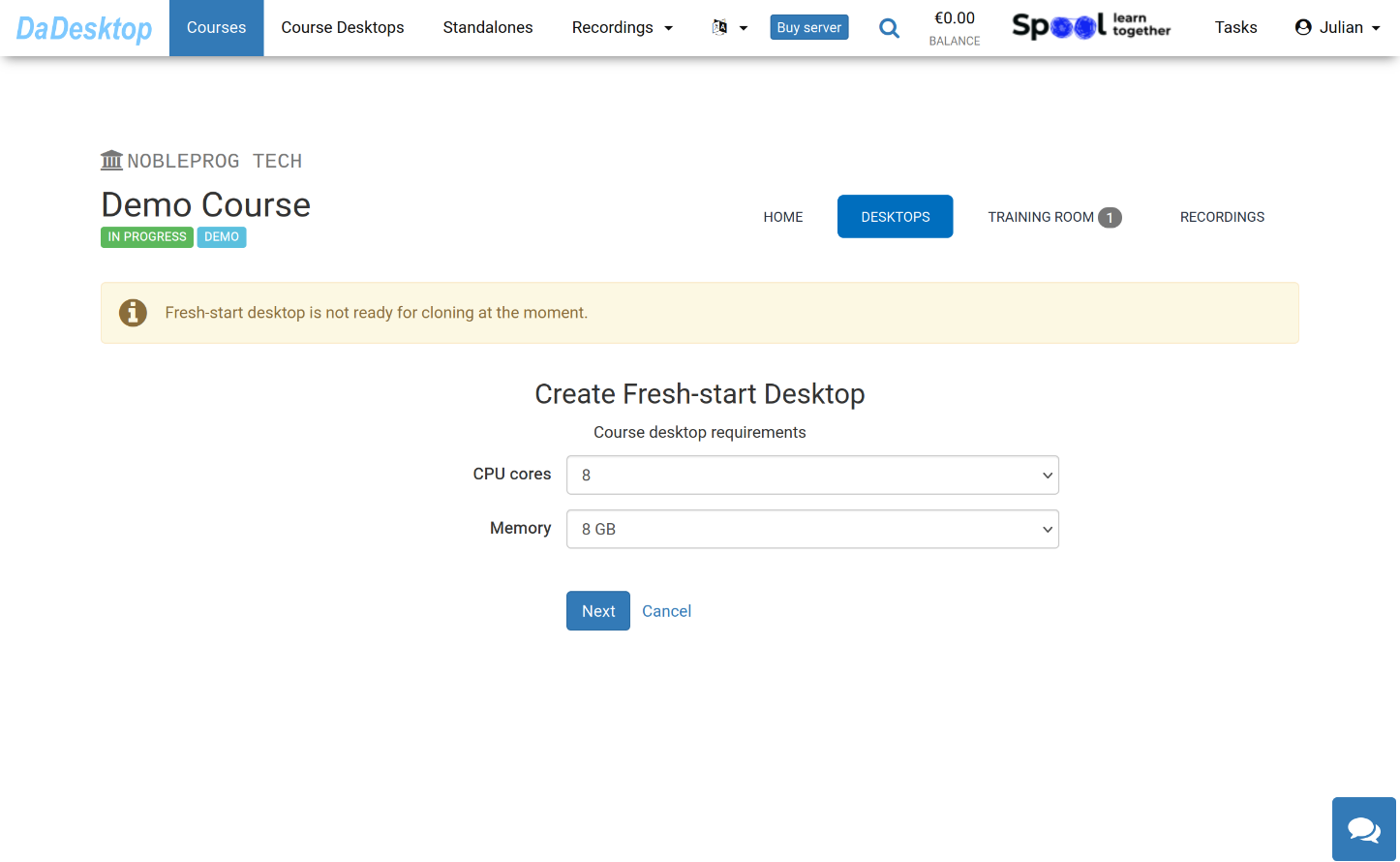
Here you can see the various options for deploying from an OS template
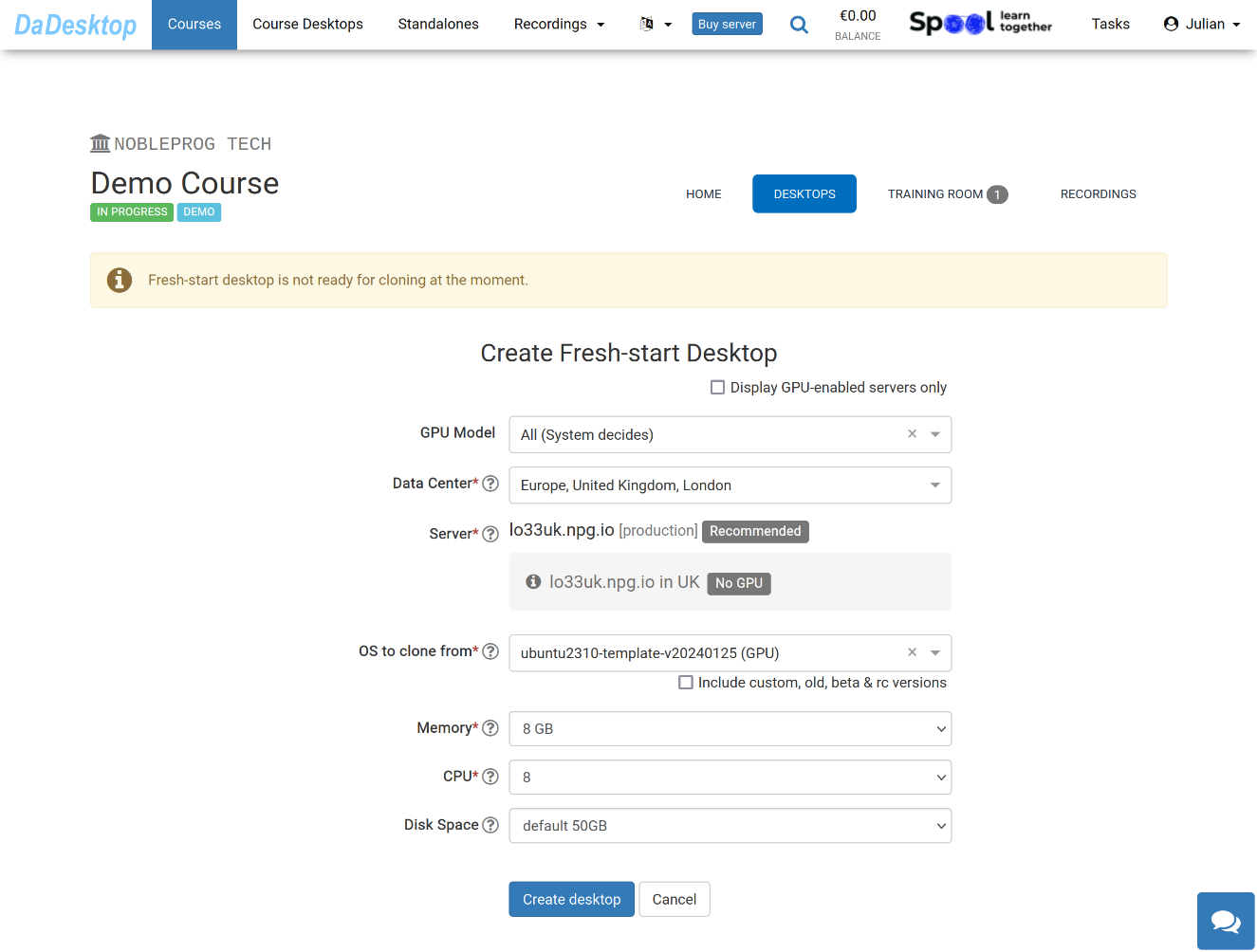
Below is an explanation of each setting:
-
GPU Model
Select the GPU type, if needed. Check 'Display GPU enabled servers' to filter only servers with GPUs -
Datacentre / Server
Pick the datacentre region and server that is geographically closest to your location in Germany -
OS to clone from
Choose the operating system template to use. Options include Windows and various Linux distributions such as Ubuntu, Debian, and Almalinux -
Include custom, old, beta & rc Versions
Show additional versions like custom, older, beta, and release candidates. DaDesktop keeps templates up to date, but if you encounter issues with the latest version, you can opt for an older one here -
CPU
Configure the number of CPU cores. Note that the default setting of 8 cores is usually sufficient for typical Linux and Windows workloads -
Memory
Set the memory limit in GB for the desktop. Keep in mind that this is constrained by server capacity; each server may offer different limits. To request higher limits, reach out via Support Chat -
Disk Space
Specify the amount of disk space allocated. The default is 50 GB