
Transferring files from your device into the DaDesktop environment
A commonly requested capability has now been implemented: moving files directly from a trainer's own laptop or desktop into the DaDesktop machine. These items might be slide decks, installation ISOs for use in a nested virtualisation setup that lets you run multiple servers and desktops simultaneously, or just everyday resources needed for a particular training application.
We’ve introduced a straightforward drag-and-drop file transfer feature in the latest Windows 10 and most Linux templates, allowing you to simply pull files from the host (i.e., your own laptop or desktop) onto the DaDesktop system.
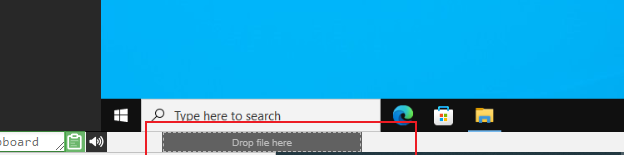
At the moment, only one file can be transferred at a time, but if you need to move several, you can create a ZIP archive and drag that across instead. The transfer uses chunking to send large files efficiently, and works best over a fast fibre internet connection. Any folder structure inside the archive—for example, within the ZIP file—is preserved.
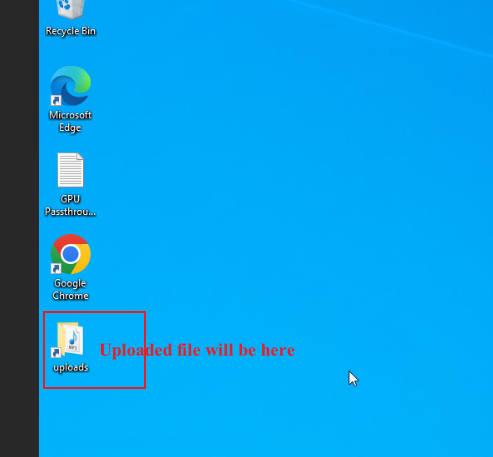
On Linux templates, we don’t yet supply a desktop shortcut to the Uploads folder as we do for Windows. Instead, transferred files are found at:
/home/student/uploads-to-dadesktop
In summary:
Supported OS templates
- Debian 12 – v20240314 and later
- Ubuntu 22.04 – v20240314 and later
- Ubuntu 24.04 – v20240314 and later
- Windows 10 – v67 and later
Templates without this feature (currently)
- Debian 11
- Almalinux
- Kali-linux
- Any older template versions
Please note that further additions to this early-release feature will be added shortly.
If you have any comments on this feature, feel free to contact our DaDesktop technical support chat.